Make a Logo Without Photoshop: Combine Text Freely, Free and Online
Key takeaways
- Text logos are easy to make in the browser, with no Photoshop needed.
- Change the position, angle, color and size of each letter to combine text freely.
- Make a transparent (no background) version and a version with a background from the same project.
- The LOONG TOOLS logo on this site was made with Logo Generator too.
When people want to make a logo, Photoshop is often the first thing that comes to mind. But for a text logo that shows off your name or brand, you don't need to install heavy software or pay a monthly subscription. Open Logo Generator and you can combine text freely, right in your browser.
Why use it instead of Photoshop
- Nothing to install, no account. Open the page and start editing.
- Free. Every feature is free and there's no watermark.
- Vector from the start. It exports SVG, so your logo never gets blurry when enlarged.
- Only what a logo needs. No hunting through layers and menus; just fonts, spacing and color.
- Stays on your computer. Nothing you type is sent to a server.
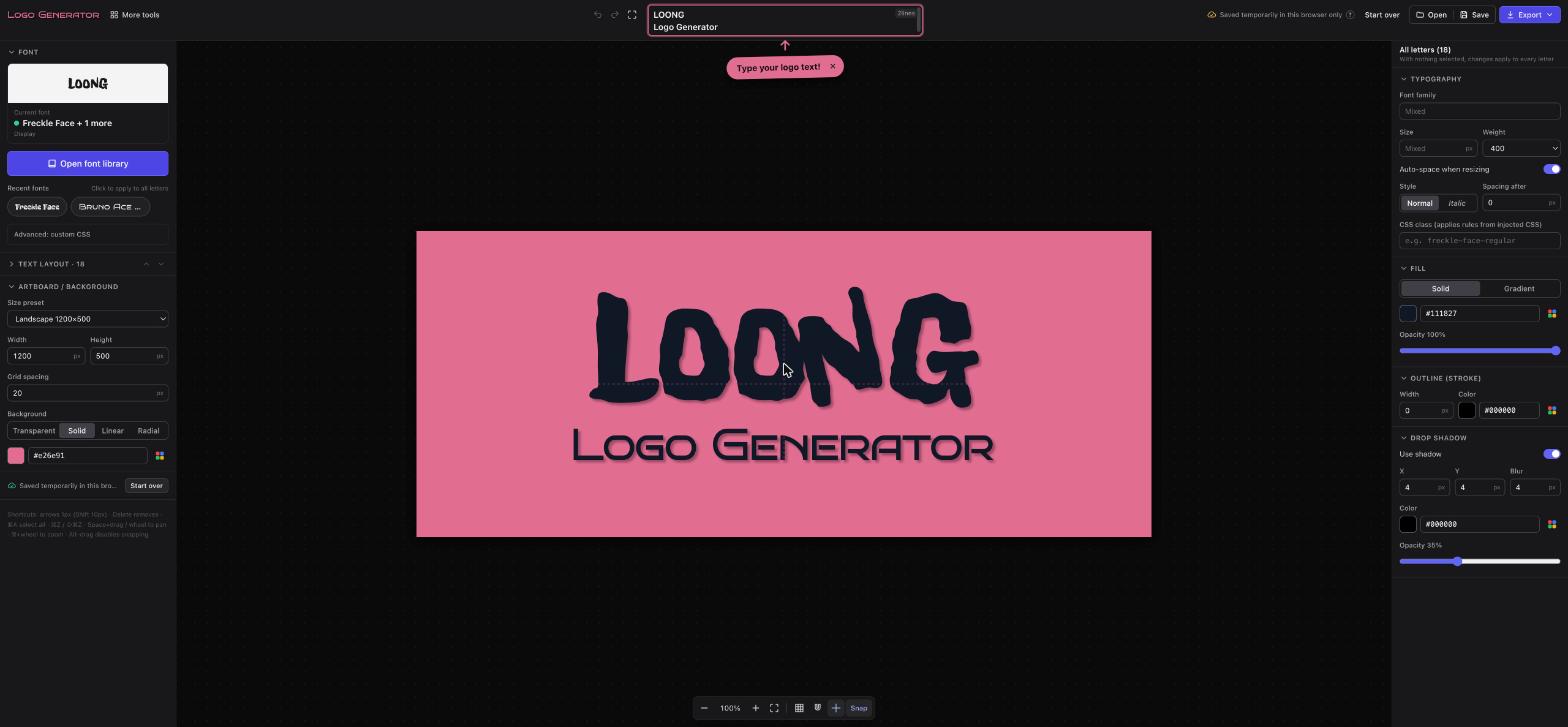
The text field, fonts, letter settings and background are all on one screen.
1. Type your name and pick a font
Type the name for your logo in the field at the top of the screen. Then pick a font that fits the mood from the font library. You can try more than 1,900 Google Fonts right away, and recently used fonts are kept together so they're easy to compare. If you're not sure which font to use, see how to choose a logo font.
2. Combine letters freely, one by one
Work that would mean splitting letters into separate layers in Photoshop takes just a click here.
- Position: arrow keys move a letter 1px; hold Shift for 10px.
- Angle: the rotate slider tilts a single letter.
- Color: give just one letter your brand color as an accent.
- Size and weight: a different weight per word adds contrast without adding fonts.
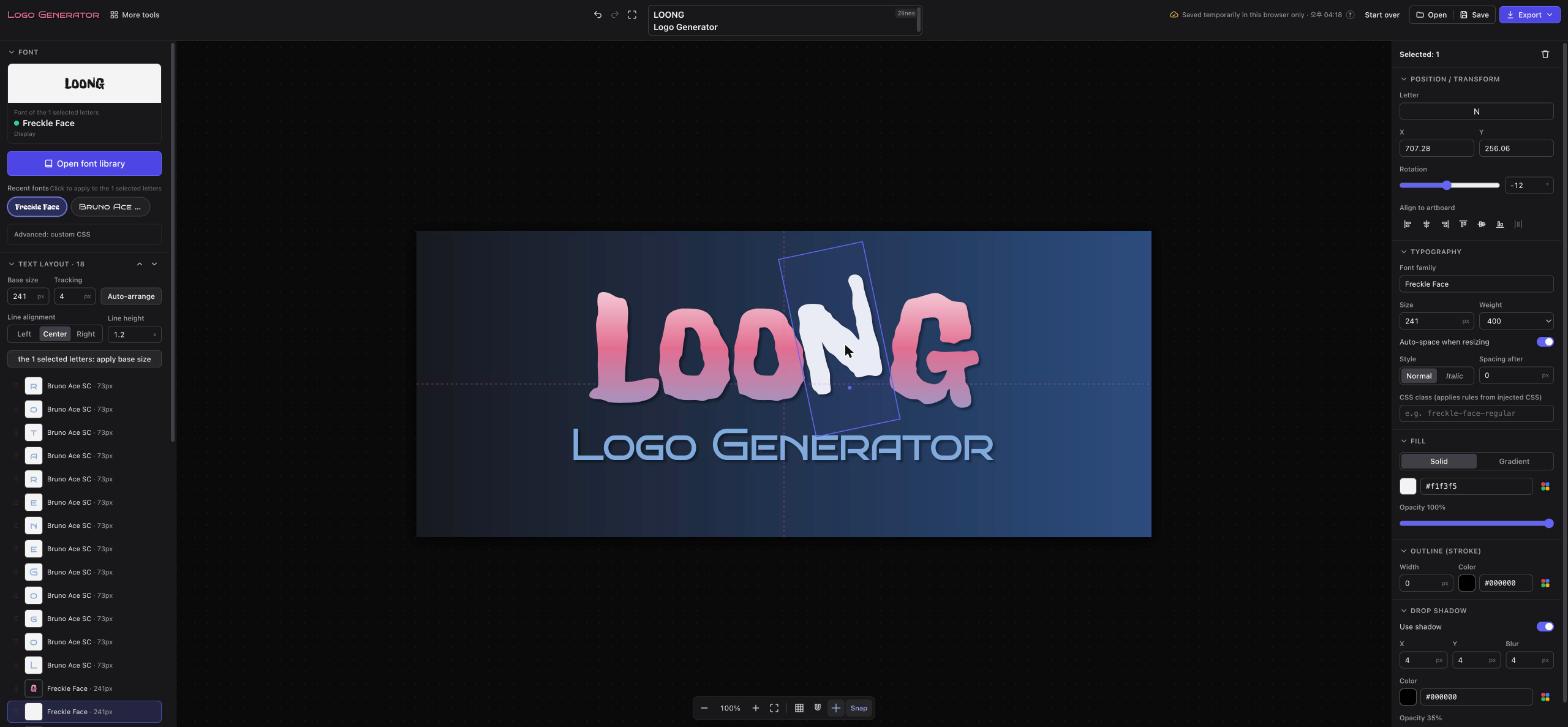 Tilting and lifting a single letter gives a logo movement.
The controls are covered in moving letters individually, and ideas for combining them are in 8 text-only logo styles.
3. Add color, gradients and effects
Use a solid color or apply a gradient to the whole word or to one letter. If the letters are hard to see on the background, add an outline or shadow. One effect is usually cleanest.
4. Make a transparent (no background) version
A logo ends up on white paper, dark websites and photos, so you always need a version with no background. In Photoshop you'd delete the background layer and save a separate file; here it's one setting.
- Choose Transparent in the background panel and only the letters remain.
- Export PNG (transparent) and it sits cleanly on any background, with no box around it. SVG is saved without a background too.
- Switch the background to a solid color or gradient to make a version with a background, such as a social media profile picture, from the same project.
- Keep one letter color for dark backgrounds and one for light backgrounds, and the logo works everywhere.
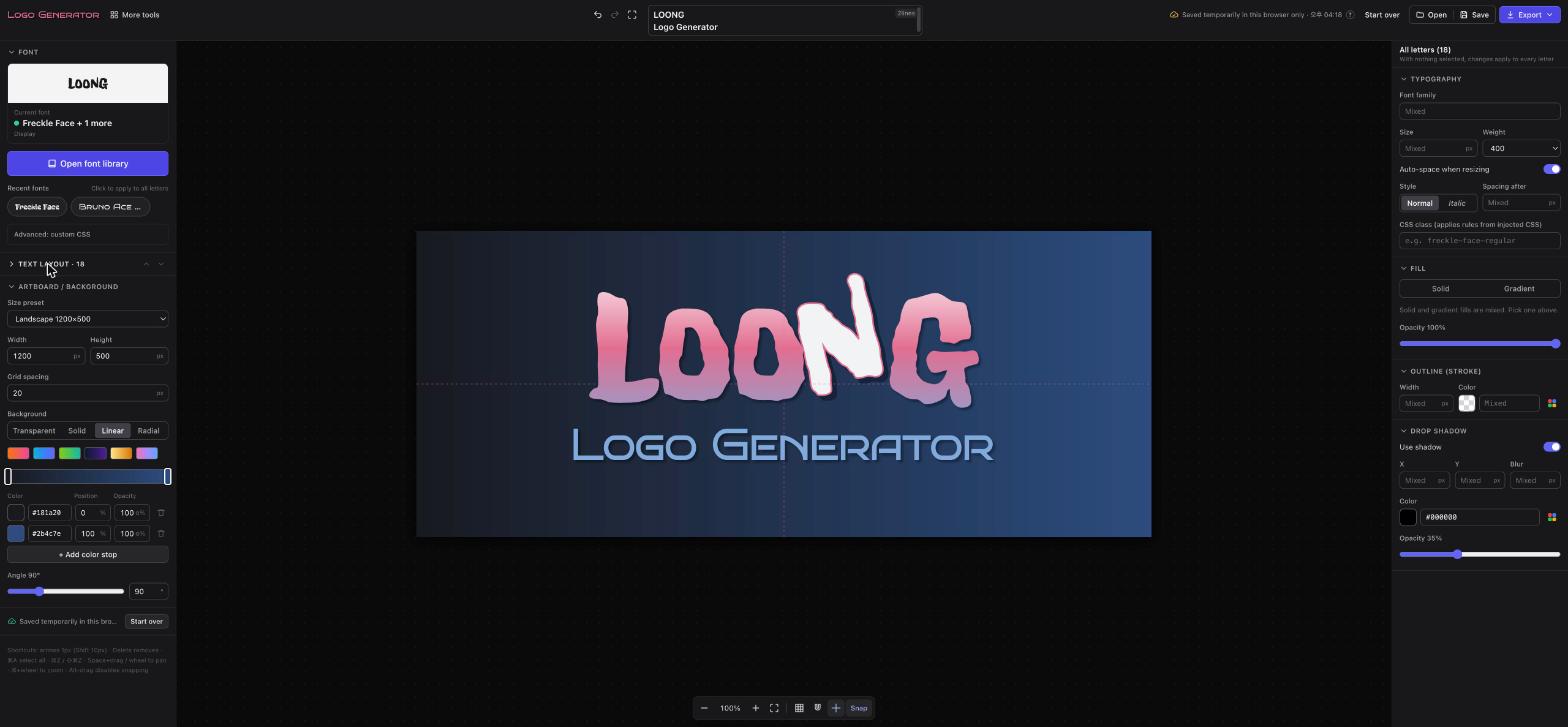 Transparent gives you the no-background version; add a color for a version with a background.
If all you have is a logo image with a white background, MoreClearPNG can remove the background and turn it into a transparent PNG. Background settings are covered in more detail in the logo background guide.
Press Enter to start a new line and you can also make a two-line logo with a tagline under the brand name.
5. Save the files you need
Use the Export menu to save for each use:
- SVG: websites and print, where the size changes often
- Transparent PNG: documents, presentations and social media
- Favicon set: the icon in a website's browser tab
- HTML/CSS code: paste straight into a web page
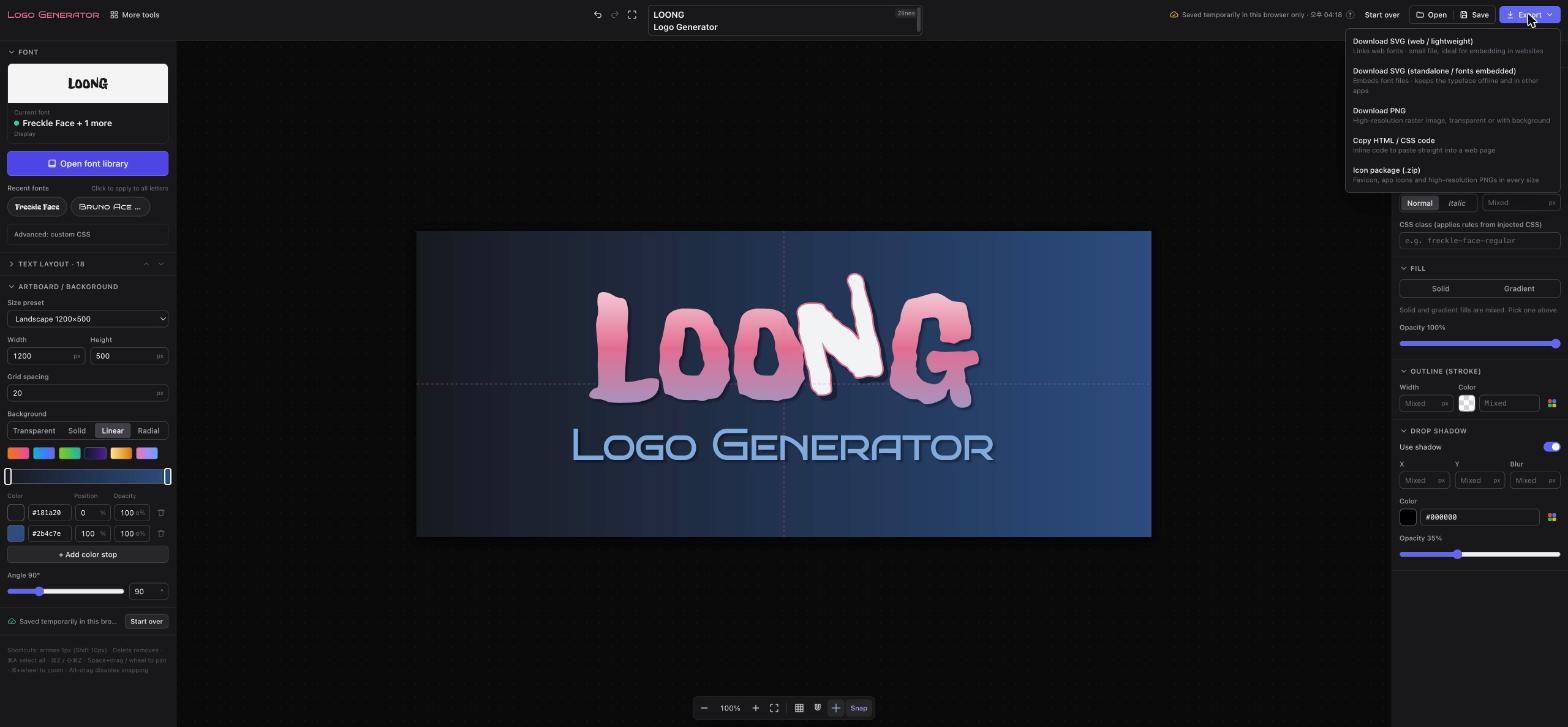 SVG, PNG, favicons and code, all from one menu.
Your work is saved in the browser automatically. Use the Save button to download a project file, and you can pick up exactly where you left off later.
The logo on this site was made this way
The LOONG TOOLS logo at the top of this page was made with Logo Generator too. We picked a font, fine-tuned the letter spacing, exported it as an SVG with no background and put it straight on the site. Photoshop was never opened.
When you do need Photoshop
If you need to composite photos or add a hand-drawn illustration to your logo, a dedicated graphics program is the better fit. But for a logo built around a name, Logo Generator is usually all you need. Open Logo Generator and make your first logo now.
FAQ
Do I really not need Photoshop at all?
Not for a logo made from text. Picking fonts, placing letters, colors and gradients, outlines and shadows, and exporting files all happen in the browser. If you need photo compositing or detailed illustration, that's when a dedicated graphics program makes sense.
Is it free? Is there a watermark?
It's free, there's no sign-up, and downloaded files have no watermark.
Can I make a logo with a transparent background?
Yes. Set the background to transparent and export PNG (transparent) or SVG to get a version with no background. If you only have a logo image with a background, MoreClearPNG can remove it.
How is it different from a logo made in Photoshop?
Photoshop mainly works with pixels, so a logo can get blurry when you enlarge it. Logo Generator exports vectors (SVG) from the start, so the logo stays sharp at any size, from business cards to banners.
Keep reading
 Guide
How to Make a Text Logo in 5 Minutes (Free, No Sign-Up)
A step-by-step guide to making a text logo or wordmark in your browser with Logo Generator: type your name, pick a font, adjust letters, and export SVG or PNG.
November 8, 2026 · 3 min readGuide
Move, Rotate and Space Every Letter: Precise Wordmark Editing
Learn how to select, drag, rotate and space individual letters in Logo Generator to give a text logo a custom, hand-tuned look.
November 7, 2026 · 3 min read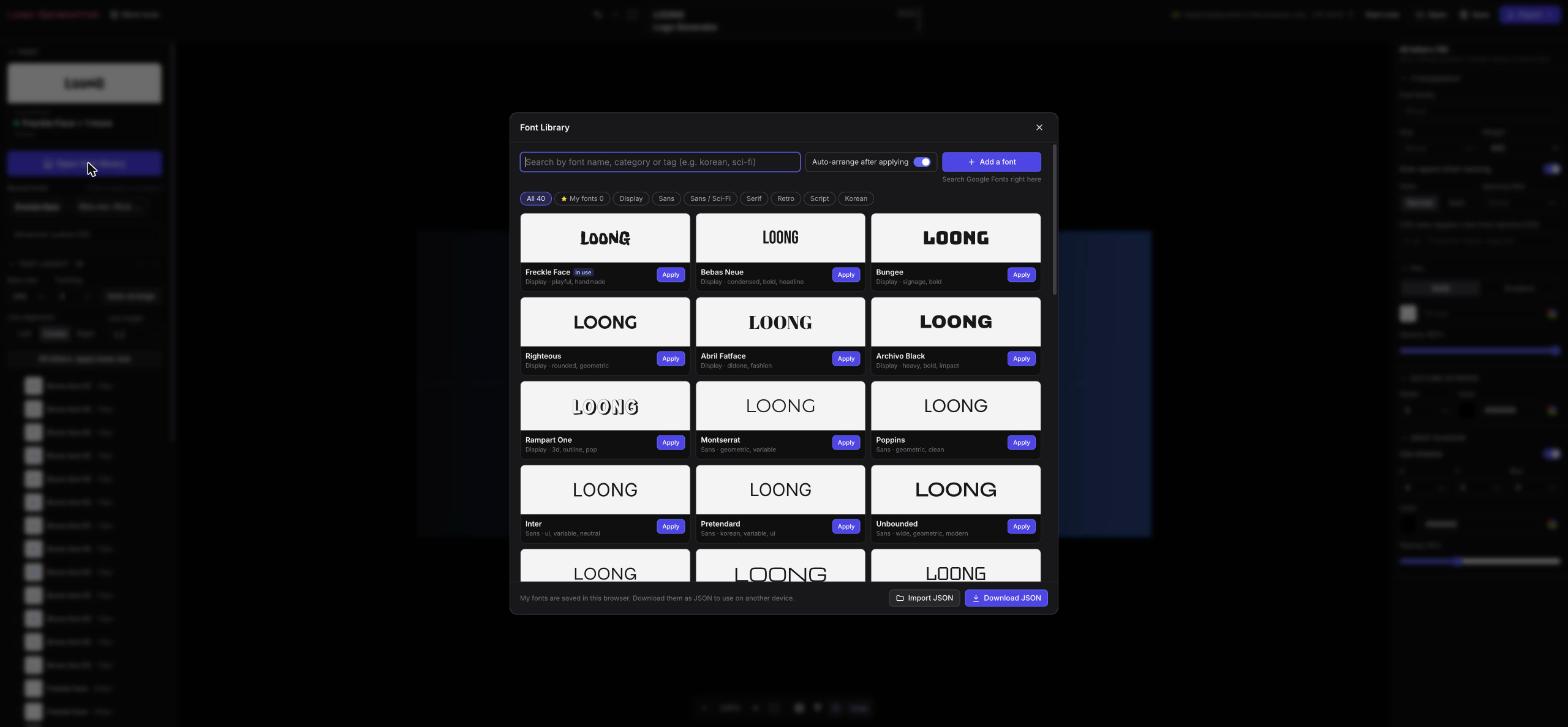 Guide
Work Faster with the Font Library, My Fonts and Recent Fonts
How to use Logo Generator's font library: preview fonts with your own text, add Google Fonts or CDN fonts, keep a personal collection, and reuse recent fonts in one click.
November 5, 2026 · 2 min read