How to Make a Text Logo in 5 Minutes (Free, No Sign-Up)
Key takeaways
- A text logo (wordmark) only needs a name, a font and good spacing.
- Logo Generator runs in your browser with no account, and nothing is uploaded.
- Export SVG for the web, PNG for documents, and a favicon set for your site.
A text logo, also called a wordmark, is the fastest way to give a project a real identity. Brands like Google, Coca-Cola and FedEx are "just" text, yet they are instantly recognisable because the font, weight and spacing were chosen with care. You can do the same in a few minutes with Logo Generator, a free editor that runs entirely in your browser.
This guide walks through the whole process, from typing your name to downloading files you can use on a website, in a document or on social media.
What you need before you start
Only two things:
- Your name or brand text. Keep it short. One to three words read best at small sizes.
- A rough idea of the mood. Bold and modern, friendly and round, classic and elegant? You will pick a font that matches it.
You do not need design software, an account or a credit card. Nothing you type is uploaded; the editor works locally in the browser.
Step 1: Type your logo text
Open Logo Generator. The first screen shows a sample logo and a text field at the top centre with a hint that says "Type your logo text!".
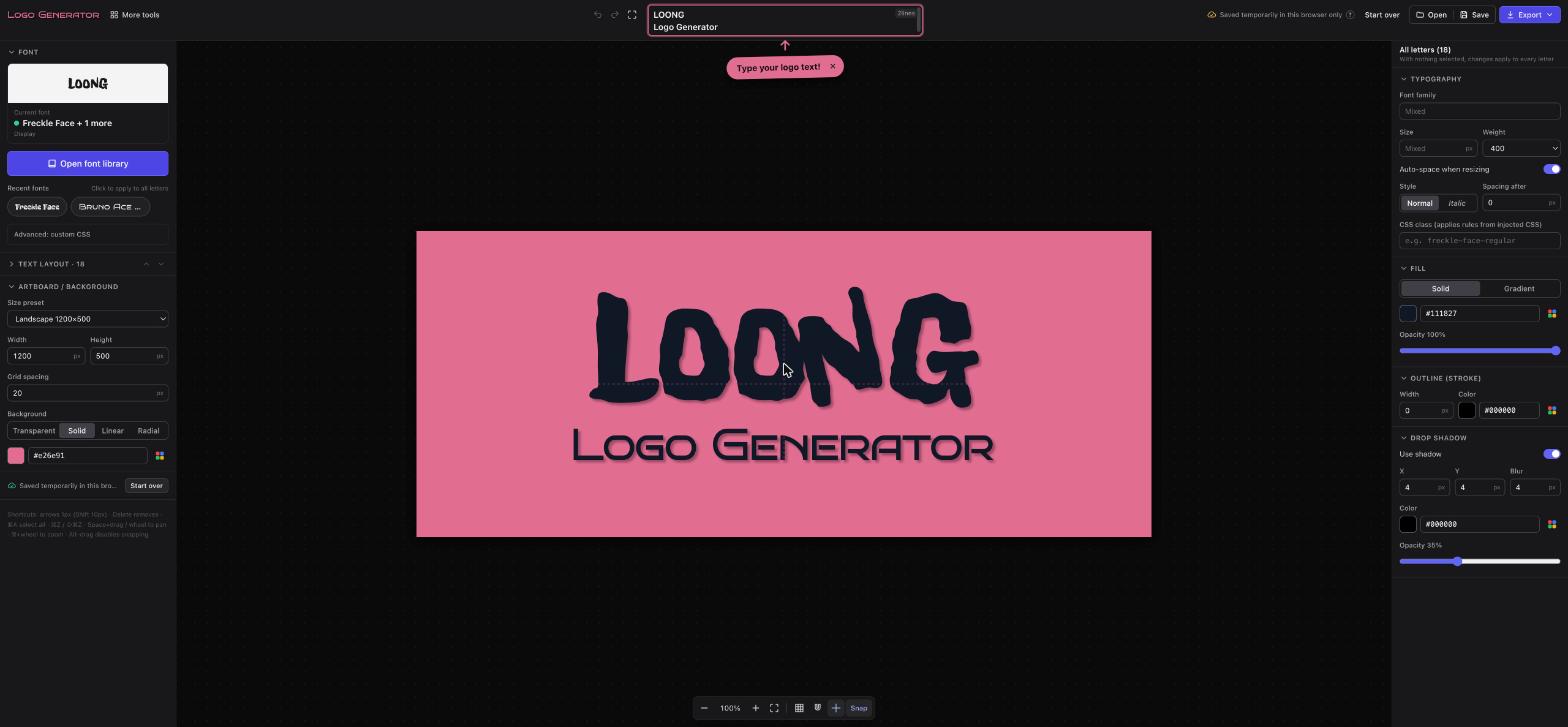 The editor: fonts on the left, the artboard in the middle, letter properties on the right.
Click the field and replace the sample with your own text. Press Enter to start a second line, for example for a tagline. Every character becomes its own letter on the artboard, which is what makes precise adjustments possible later.
Step 2: Choose a font
Click Open font library. You get 40 hand-picked fonts grouped into Display, Sans, Serif, Retro, Script and Korean, each previewed with your own text.
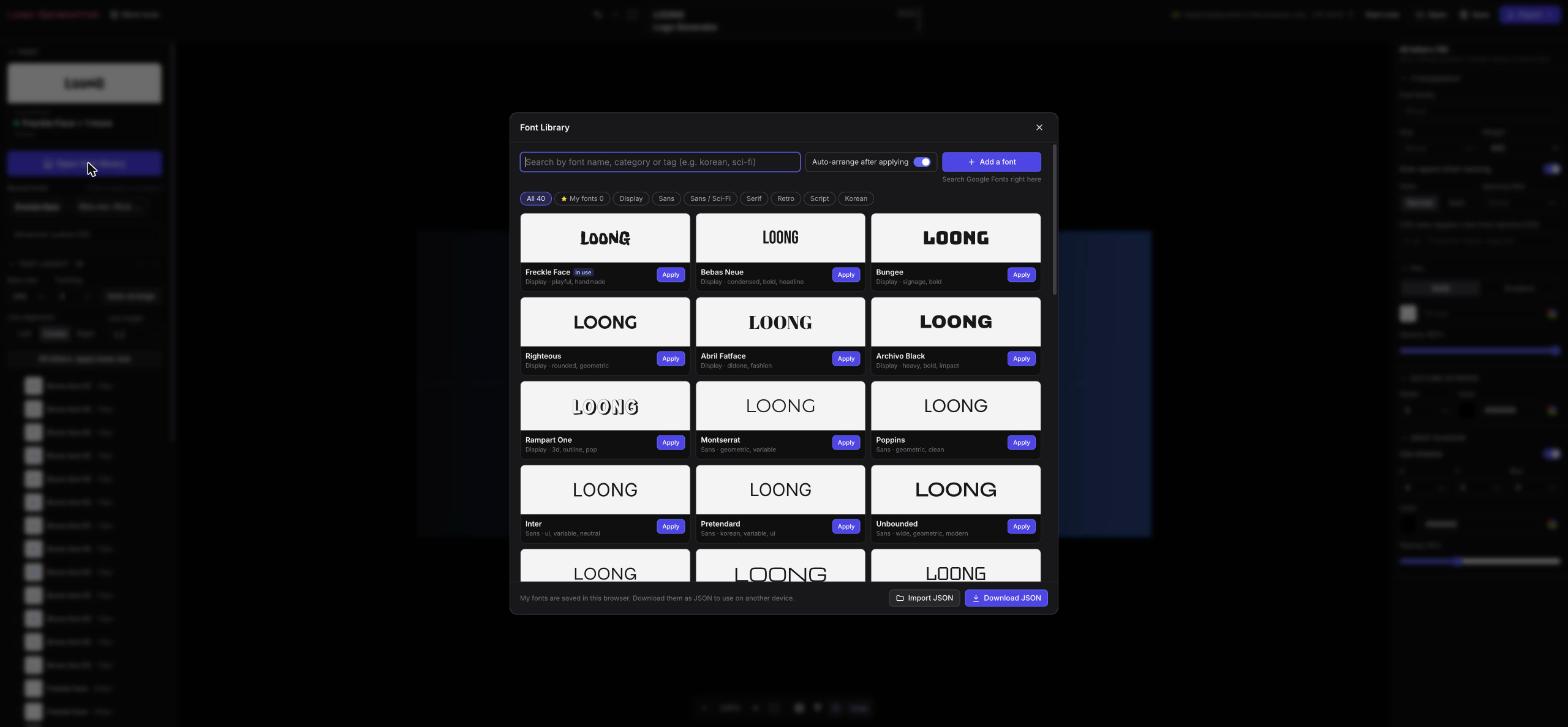 Every card previews your actual logo text, so you can compare fonts at a glance.
Click Apply on a font you like. If letters are selected, the font goes only to those letters; otherwise it applies to all of them. With Auto-arrange after applying switched on, spacing is recalculated for the new font so nothing overlaps.
Need something else? Add a font lets you search all 1,959 Google Fonts by name. We cover choosing fonts in detail in the font guide.
Step 3: Adjust size and spacing
Open Text layout on the left:
- Base size sets the size of every letter.
- Tracking adds or removes space between letters.
- Line alignment and Line height control multi-line logos.
For a logo with a big name and a smaller tagline, select the letters of one line (drag a box around them on the artboard) and change Size on the right. With Auto-space when resizing on, the line is re-spaced automatically.
Step 4: Add colour
With nothing selected, colour changes apply to every letter. Pick a solid colour under Fill, or switch to Gradient for a two- or three-colour blend. You can also change the background under Artboard / Background: transparent, solid, linear or radial.
Keep it simple: most strong logos use one or two colours. You can always come back and add a gradient or an outline later.
Step 5: Export your logo
Click Export in the top-right corner:
- SVG (web / lightweight) – a small vector file for websites.
- SVG (standalone / fonts embedded) – keeps the typeface intact in Figma, Illustrator or offline.
- PNG – an image at up to 4× size, with or without background.
- HTML / CSS code – paste the logo straight into a web page.
- Icon package (.zip) – favicon, app icons and high-resolution PNGs in one go.
If you are unsure which file you need, read which logo file format to use.
Tips for a better text logo
- Test it small. Zoom out until the logo is the size of a browser tab icon. If it is unreadable, use a bolder font or fewer letters.
- Limit fonts to two. One for the name, one for the tagline.
- Check spacing between round and straight letters. "O" next to "V" often looks too far apart; nudge single letters with the arrow keys.
- Save the project. Click Save to download
logo-config.json, so you can reopen and edit the logo any time.
That's it: a clean, usable text logo in about five minutes. Next, learn how to move individual letters to give your wordmark a custom touch.
FAQ
Is Logo Generator free for commercial use?
Yes. The tool is free, and the built-in fonts and the Google Fonts it uses are open-licensed (mostly OFL), so you can use the logo commercially. Check the license yourself if you add a font from another source.
Do I need to create an account?
No. The editor opens immediately and your work is autosaved in your browser. Download a project file with Save to keep it permanently.
Can I make a logo in Korean or other languages?
Yes. Use a font that supports the script (the font library has a Korean filter) and type your text as usual.
Keep reading
 Guide
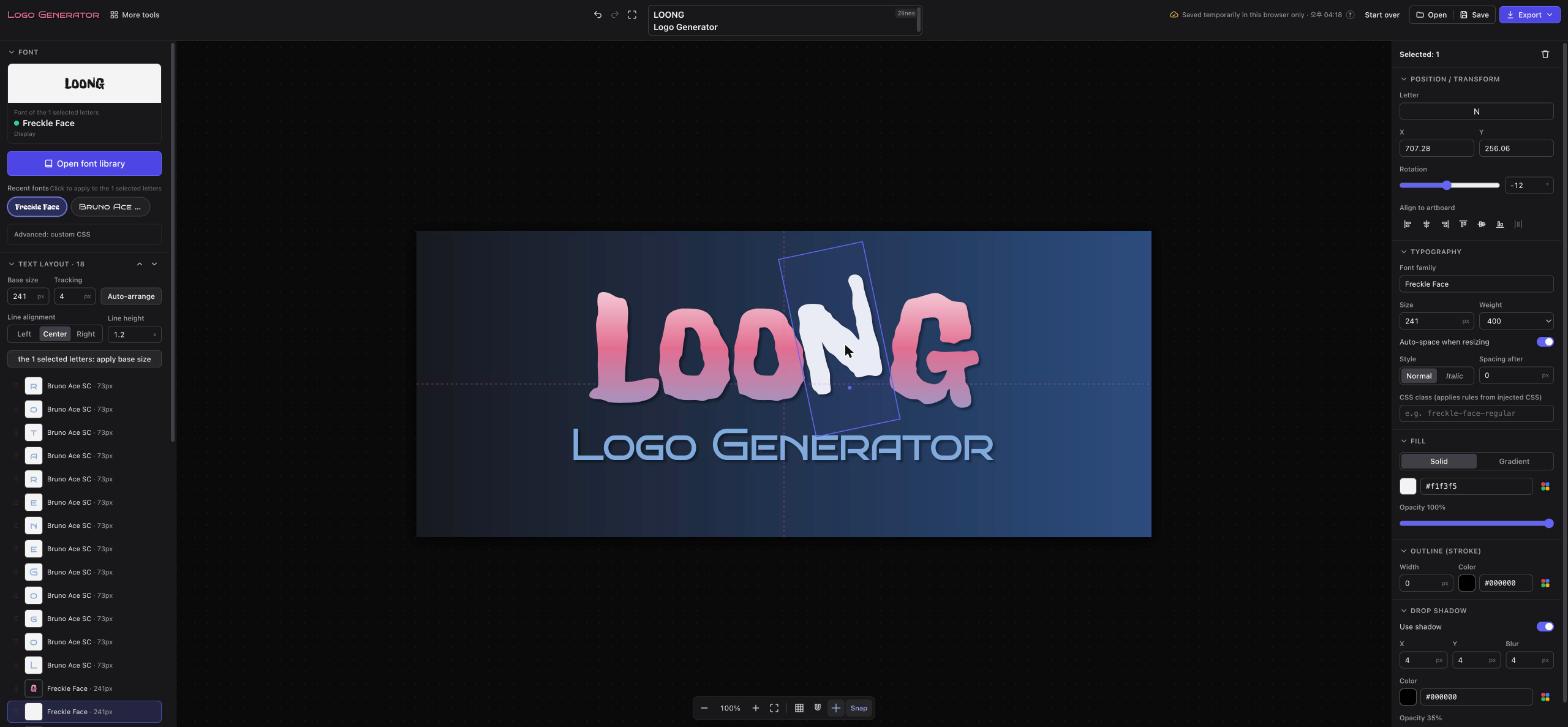
Move, Rotate and Space Every Letter: Precise Wordmark Editing
Learn how to select, drag, rotate and space individual letters in Logo Generator to give a text logo a custom, hand-tuned look.
November 7, 2026 · 3 min read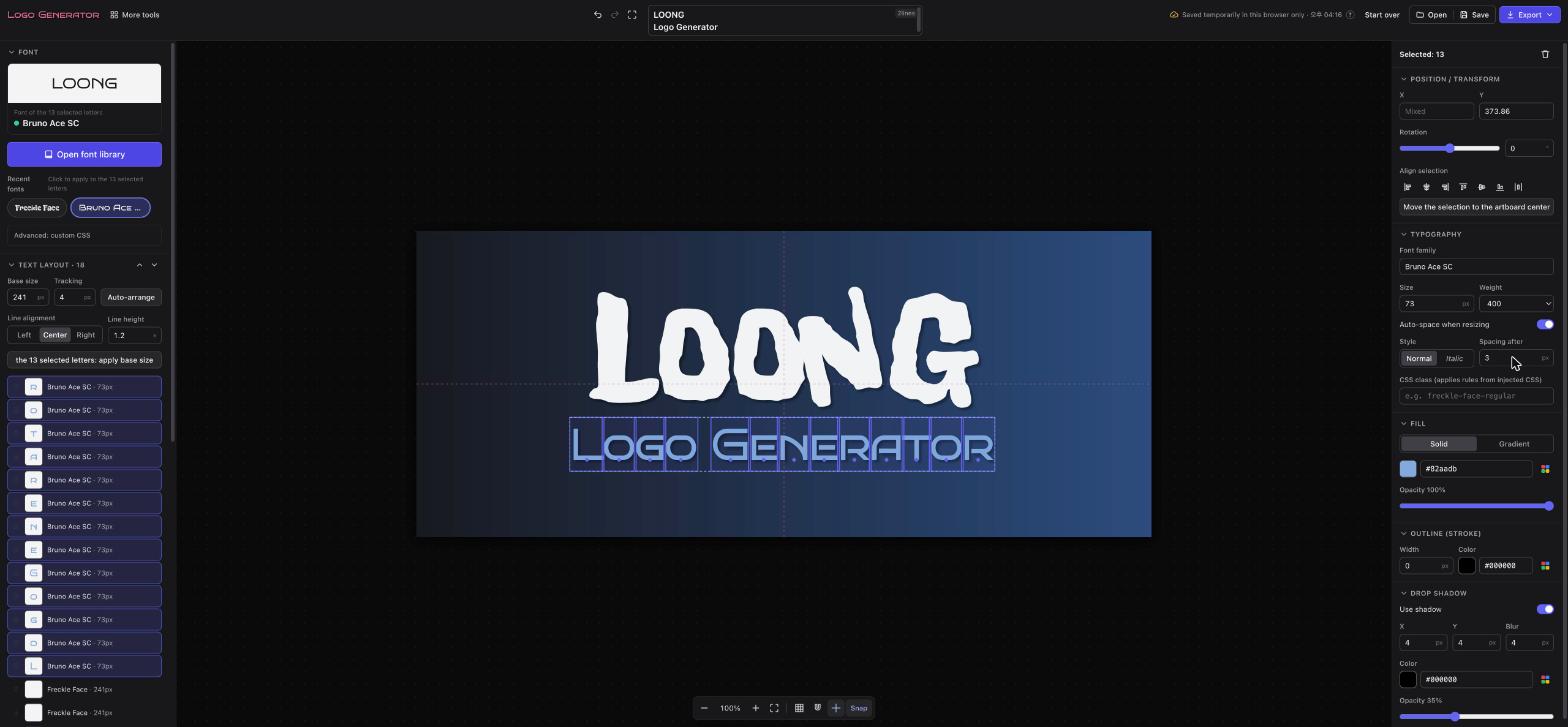 Guide
Two-Line Logos: Pair a Wordmark with a Tagline Using Line Height and Alignment
How to build a stacked logo with a large name and a smaller tagline in Logo Generator: multiple lines, size contrast, font pairing, line height and alignment.
November 4, 2026 · 2 min read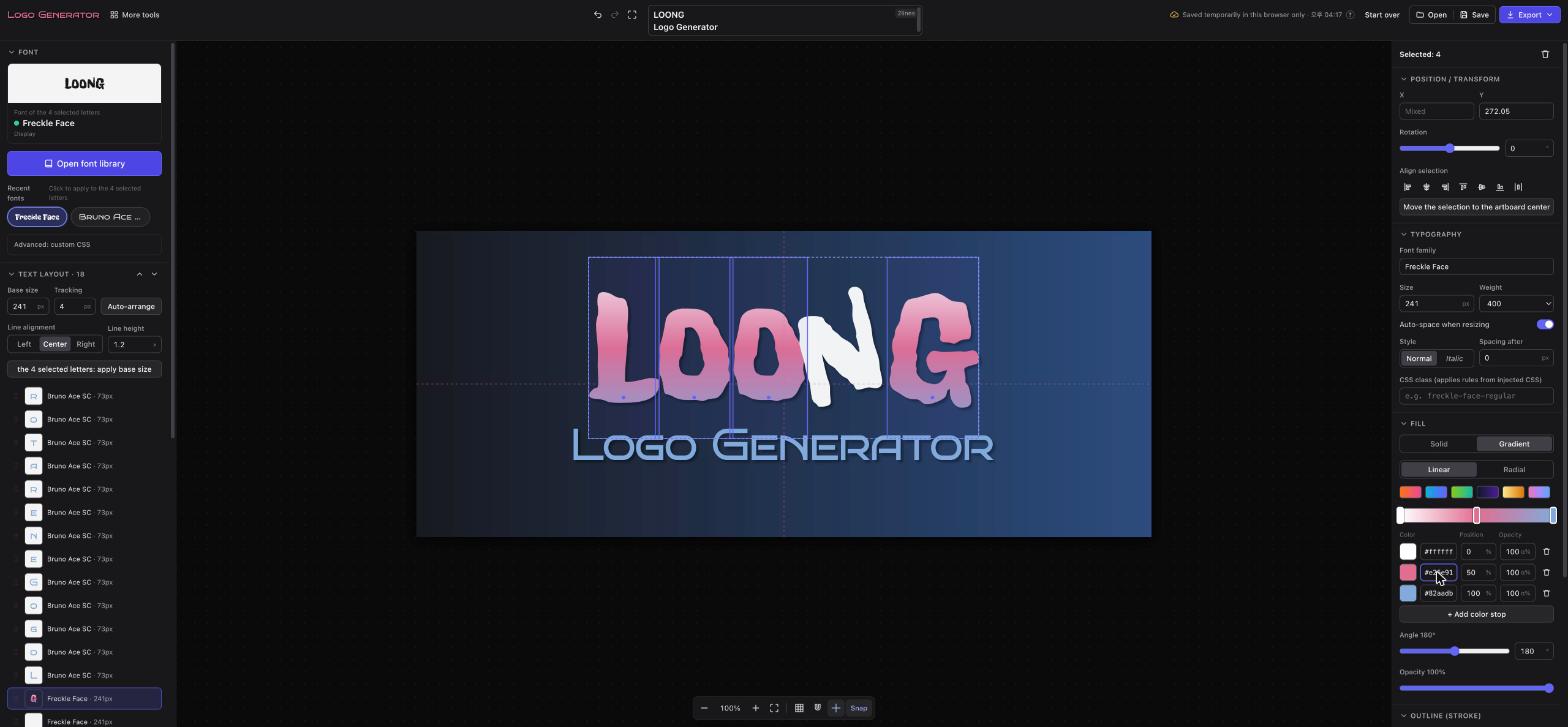 Guide
How to Make a Gradient Logo (Linear, Radial and Multi-Stop)
Add gradient fills to letters and backgrounds in Logo Generator: presets, colour stops, angle, radial gradients, and tips to keep a gradient logo readable.
November 3, 2026 · 2 min read