Move, Rotate and Space Every Letter: Precise Wordmark Editing
Key takeaways
- Every character in Logo Generator is its own object you can move, rotate and style.
- Use drag, arrow keys (1px, Shift for 10px) and the Position fields for exact placement.
- Fix uneven spacing (kerning) by eye, then lock finished letters.
Typing a word in a nice font gets you 80% of the way to a logo. The last 20%—what makes a wordmark feel designed rather than typed—comes from small adjustments to individual letters: tightening a gap, tilting one character, colouring a single letter. Logo Generator treats every character as its own object, so these edits take seconds.
Why individual letters matter
Fonts are designed for paragraphs, not for one large word. At logo size, some letter pairs look too far apart (for example "AV", "To", "LT") and round letters can look smaller than straight ones. Professional designers fix this by hand, a process called kerning. You can do the same here.
Individual control also unlocks creative ideas: a rotated letter, a letter in a different colour, or one character that breaks the baseline to suggest movement.
Selecting letters
- Click a letter on the artboard to select it.
- Drag a box around several letters to select them together.
- Shift-click or ⌘-click to add or remove letters from the selection.
- ⌘A selects all letters. Esc clears the selection.
The panel on the right shows what is selected: "Selected: 1", "Selected: 3", or "All letters" when nothing is selected.
Moving letters
Drag a selected letter to move it. While dragging, the letter snaps to the grid and to the artboard's centre lines, which helps keep things aligned. Hold Alt while dragging to turn snapping off for fine positioning.
For exact moves:
- Arrow keys move the selection by 1px; Shift + arrow moves 10px.
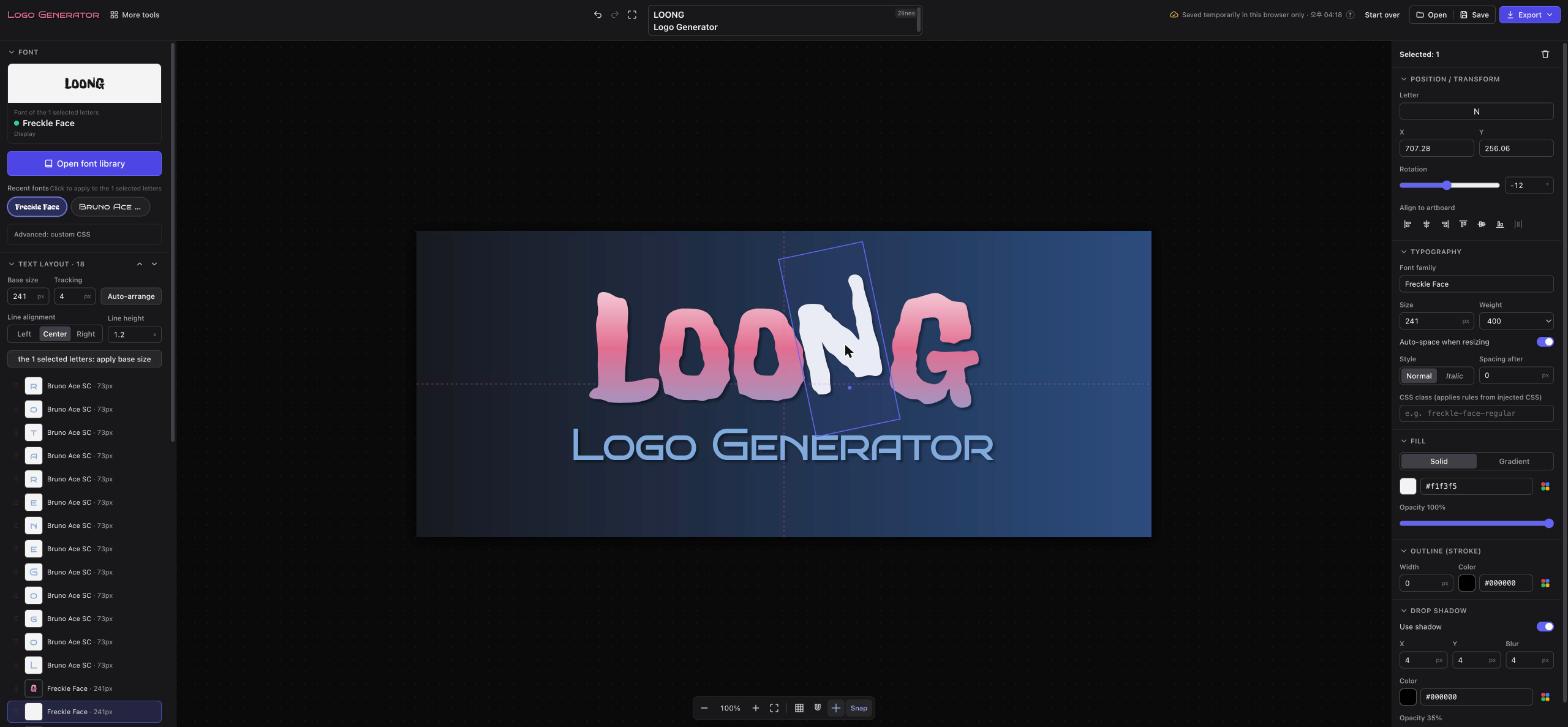
- The Position / Transform section shows X and Y. Type a value to place the letter precisely.
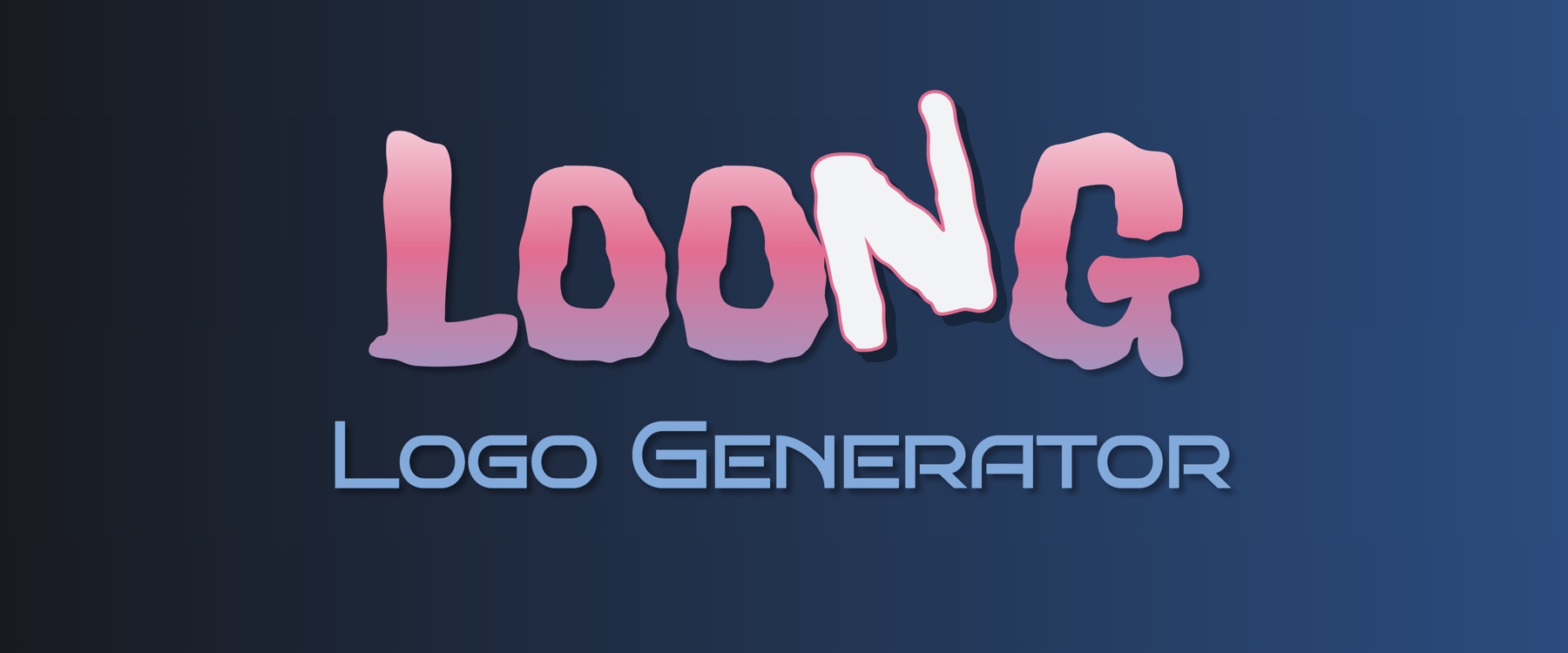
The "N" is selected on its own: rotated −12°, kept white while the other letters use a gradient, and lifted 20px above the baseline.
Rotating a letter
With a letter selected, use the Rotation slider or type an angle in degrees. Small angles (5–15°) add energy without hurting readability. Rotate around the letter's own centre so it stays in place.
Spacing: tracking and per-letter gaps
- Tracking (Text layout panel) widens or narrows the whole word. Wide tracking feels calm and premium; tight tracking feels bold and compact.
- Spacing after (Typography, right panel) sets the gap after the selected letters only. Use it to fix individual pairs.
- Auto-arrange re-spaces every letter in text order and centres the result. Use it after big font changes, then fine-tune by hand.
A quick check for even spacing: squint at the logo or zoom out. Gaps that stand out as lighter or darker areas need adjusting.
Aligning and distributing
Select several letters to see Align selection: left, horizontal centre, right, top, vertical centre and bottom. With three or more letters selected, Distribute horizontally spreads them evenly. Move the selection to the artboard center recentres a group in one click.
With a single letter selected, the same buttons become Align to artboard.
Layers, hiding and locking
The Letter layers list on the left shows every letter with its font and size:
- Bring forward / Send backward changes which letter sits on top where they overlap—useful for interlocking letters.
- Hide temporarily removes a letter from view and exports.
- Lock protects finished letters from accidental moves.
Ideas to try
- Lift one letter slightly above the others to suggest motion.
- Colour a single letter in an accent colour, like the dot of an "i".
- Overlap two letters a little and bring one forward for a monogram feel.
- Mix weights: a heavy first word and a light second word.
For more inspiration, see text-only logo styles you can build in minutes. When you're happy, continue with two-line logos with a tagline.
FAQ
What is the difference between tracking and kerning?
Tracking changes the space between all letters at once. Kerning adjusts the space between one specific pair, such as "A" and "V". In Logo Generator, Tracking is in Text layout, and kerning is done by moving or spacing individual letters.
Can I select several letters at once?
Yes. Drag a box around them on the artboard, or hold Shift (or ⌘) and click letters to add them to the selection. ⌘A selects every letter.
How do I stop a letter from moving by accident?
Lock it in the Letter layers list on the left. Locked letters can't be dragged and keep their size when you apply the base size.
Keep reading
 Guide
How to Make a Text Logo in 5 Minutes (Free, No Sign-Up)
A step-by-step guide to making a text logo or wordmark in your browser with Logo Generator: type your name, pick a font, adjust letters, and export SVG or PNG.
November 8, 2026 · 3 min read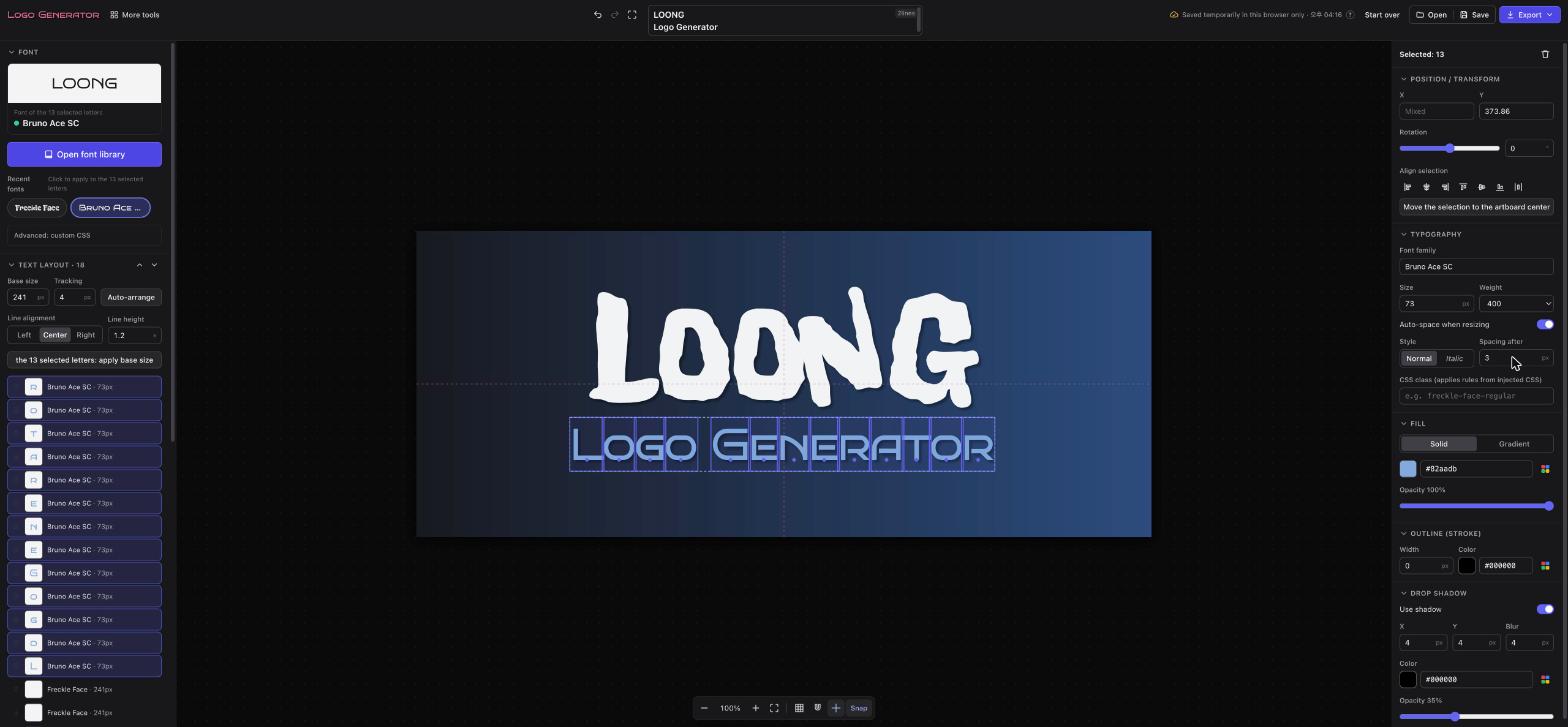 Guide
Two-Line Logos: Pair a Wordmark with a Tagline Using Line Height and Alignment
How to build a stacked logo with a large name and a smaller tagline in Logo Generator: multiple lines, size contrast, font pairing, line height and alignment.
November 4, 2026 · 2 min read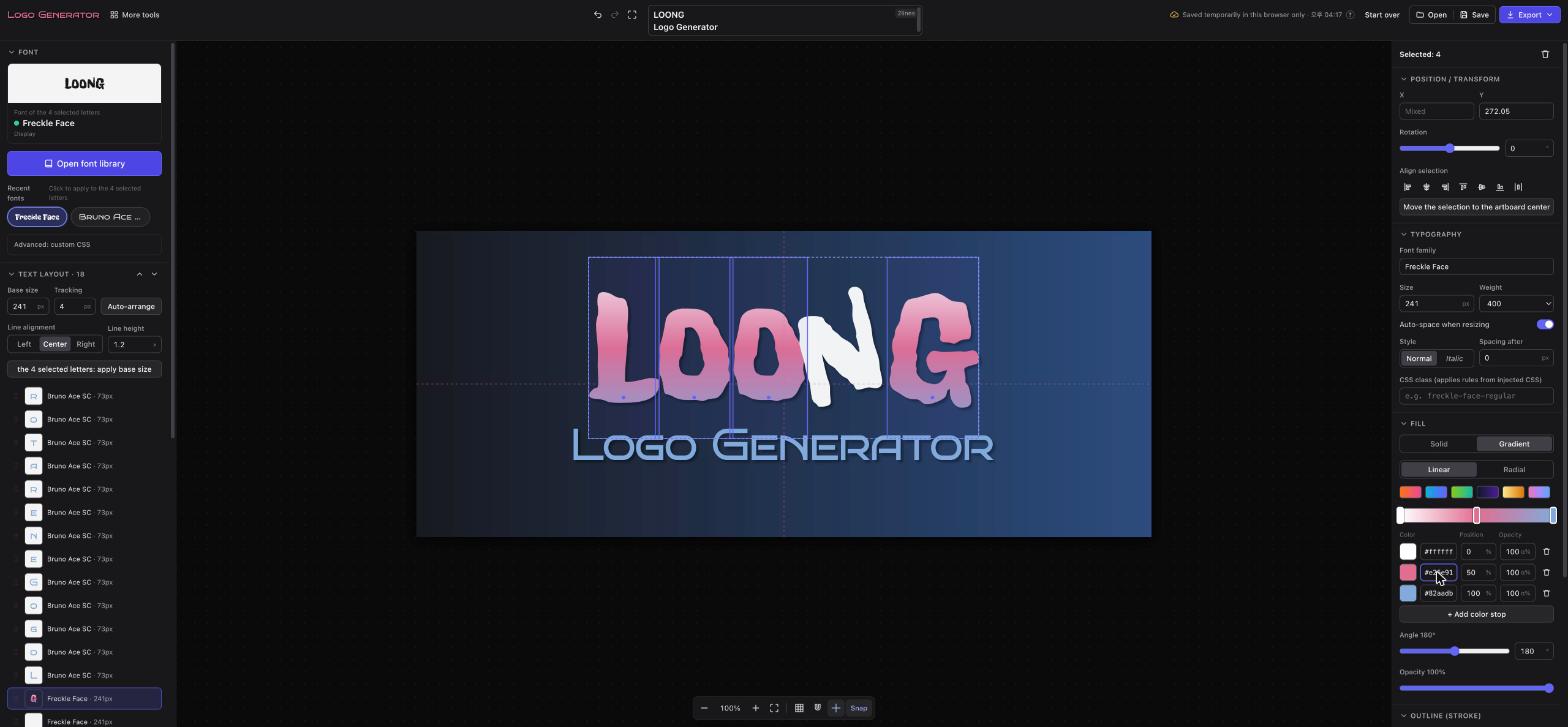 Guide
How to Make a Gradient Logo (Linear, Radial and Multi-Stop)
Add gradient fills to letters and backgrounds in Logo Generator: presets, colour stops, angle, radial gradients, and tips to keep a gradient logo readable.
November 3, 2026 · 2 min read