Work Faster with the Font Library, My Fonts and Recent Fonts
Key takeaways
- The font library previews 40 curated fonts with your actual logo text.
- Add any Google Font by name or URL, or a CDN font with CSS code.
- My fonts live in your browser; export them as JSON to move between devices.
Choosing a font is the slowest part of making a text logo—not because there are too few options, but because comparing them is tedious. Logo Generator is built around a font library that removes most of that friction. This guide covers everything it can do.
Open the library
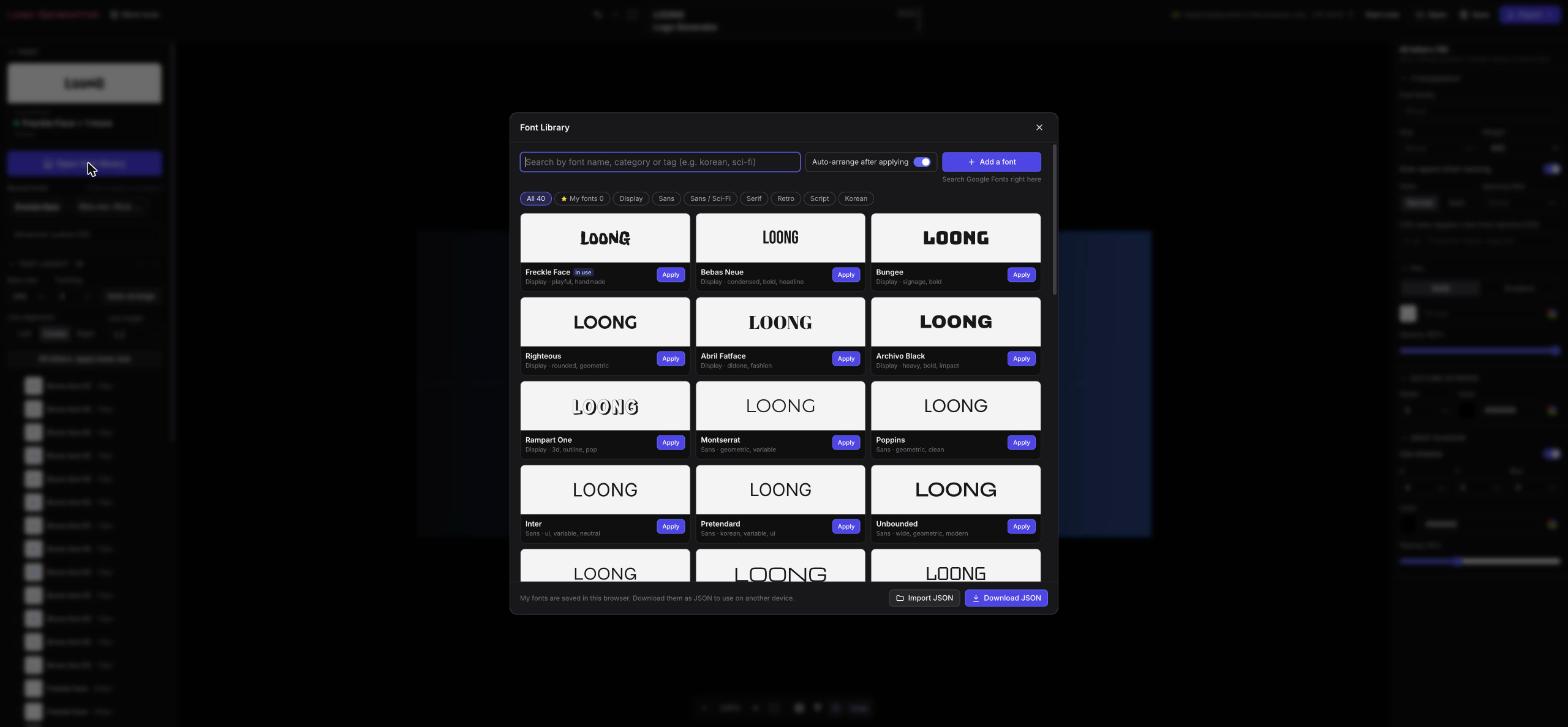
Click Open font library in the left panel. Each card previews your current logo text in that font, so you're comparing real results.
40 curated fonts, filterable by category and searchable by name or tag.
At the top you'll find:
- Search by font name, category or tag (try "korean", "sci-fi", "condensed").
- Category chips: All, My fonts, Display, Sans, Sans / Sci-Fi, Serif, Retro, Script, Korean.
- Auto-arrange after applying: re-spaces letters to fit the new font's widths. Leave it on unless you've hand-placed letters you want to keep.
Apply to some letters or all
Apply works on the current selection. Select the first line before opening the library to change only the name; select nothing to change every letter. The toast message confirms what happened—"Applied 'Poppins' to the 14 selected letters"—and ⌘Z undoes it.
Add a Google Font
Click Add a font. The default tab searches the full Google Fonts catalogue (1,959 families):
- Type part of a name, paste a name like "Bebas Neue", or paste a Google Fonts specimen URL.
- Filter by Korean support, Sans serif, Serif, Display, Handwriting or Monospace.
- Click a result. The font is downloaded and checked before it's saved, so you know it actually works.
- Give it tags, then Save to My fonts. Optionally apply it right away.
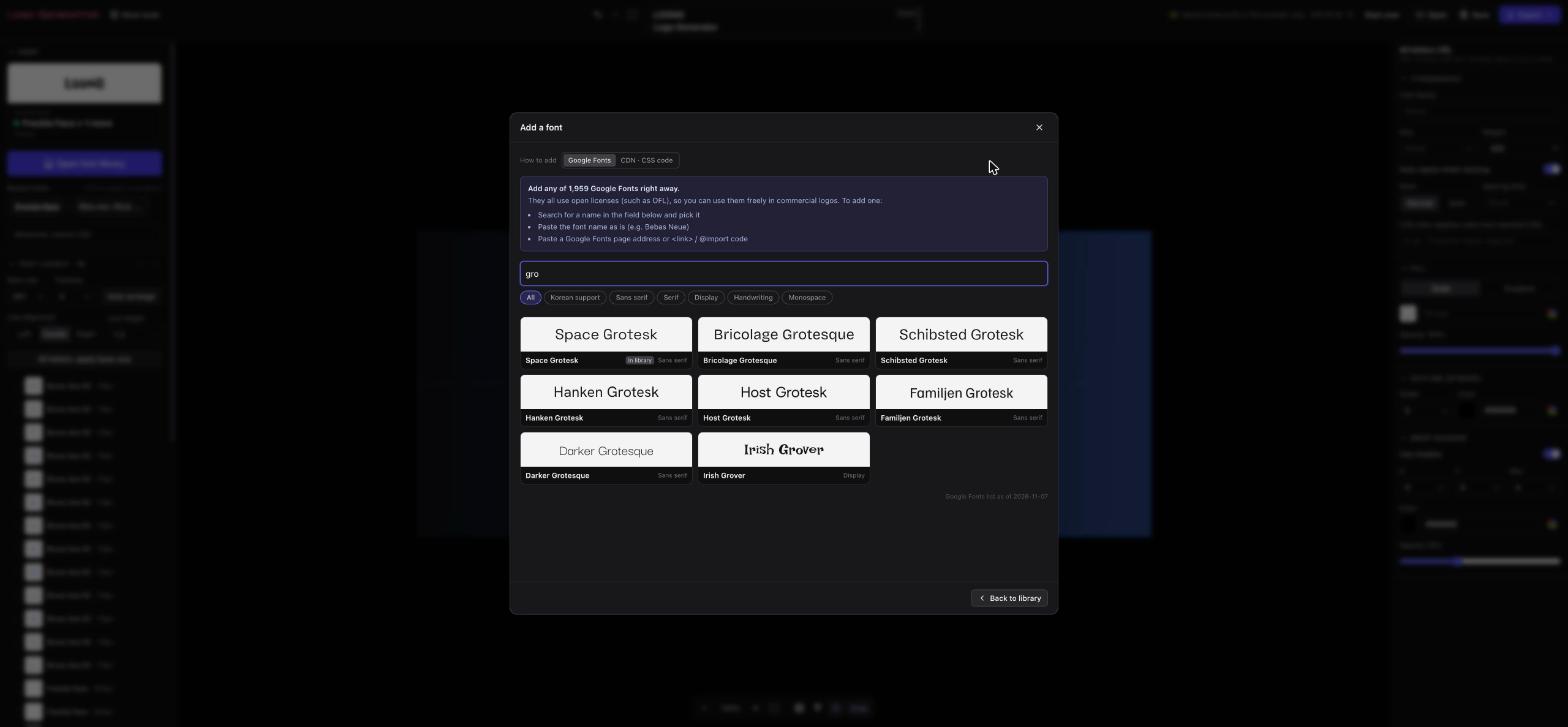 Results show the category and whether the font is already in your library.
Add a font from another CDN
Switch to CDN · CSS code to paste:
- an
@importor<link>from jsDelivr, cdnjs or another CDN, @font-facerules, or- a CSS class that sets
font-family.
The editor finds the font name, loads it, and tells you if anything is wrong—a typo in the family name, a blocked request, or a missing weight. There's an example button (Pretendard via jsDelivr) if you want to see the format.
Recent fonts
The six fonts you used most recently appear as chips under Recent fonts in the left panel. Click a chip to apply that font to the selected letters (or all letters). It's the fastest way to flip between two or three finalists.
My fonts: back up and move
Everything you add is stored in this browser only. To keep your collection:
- Download JSON saves your fonts to a file.
- Import JSON loads them in another browser or on another computer.
Project files saved with Save also record which fonts the logo uses, so reopening a project restores them.
Troubleshooting fonts
If a font card shows a warning or the canvas falls back to a default typeface, open the Font panel: it lists fonts that failed to load and explains the likely cause (offline, blocked by an ad blocker, wrong family name or weight). Fix it and press Check again.
Next, see how to choose the right font for your brand.
FAQ
Where are my added fonts stored?
In your browser's local storage. They're not uploaded. Use Download JSON to back them up and Import JSON to restore them on another browser or device.
Can I use a font that isn't on Google Fonts?
Yes. In Add a font, switch to "CDN · CSS code" and paste an @import, a <link> tag or @font-face code, for example from jsDelivr or cdnjs. Make sure the license allows commercial use.
Why does a font show "Failed to load"?
Usually a network issue or an ad blocker blocking fonts.googleapis.com or fonts.gstatic.com. The Font panel explains the likely cause and has a "Check again" button.
Keep reading
 Guide
Make a Logo Without Photoshop: Combine Text Freely, Free and Online
You don't need to install or subscribe to Photoshop to make a logo. Combine text freely in your browser: move, rotate and recolor each letter, make a transparent background version, and export SVG and PNG.
November 10, 2026 · 4 min read Guide
How to Make a Text Logo in 5 Minutes (Free, No Sign-Up)
A step-by-step guide to making a text logo or wordmark in your browser with Logo Generator: type your name, pick a font, adjust letters, and export SVG or PNG.
November 8, 2026 · 3 min read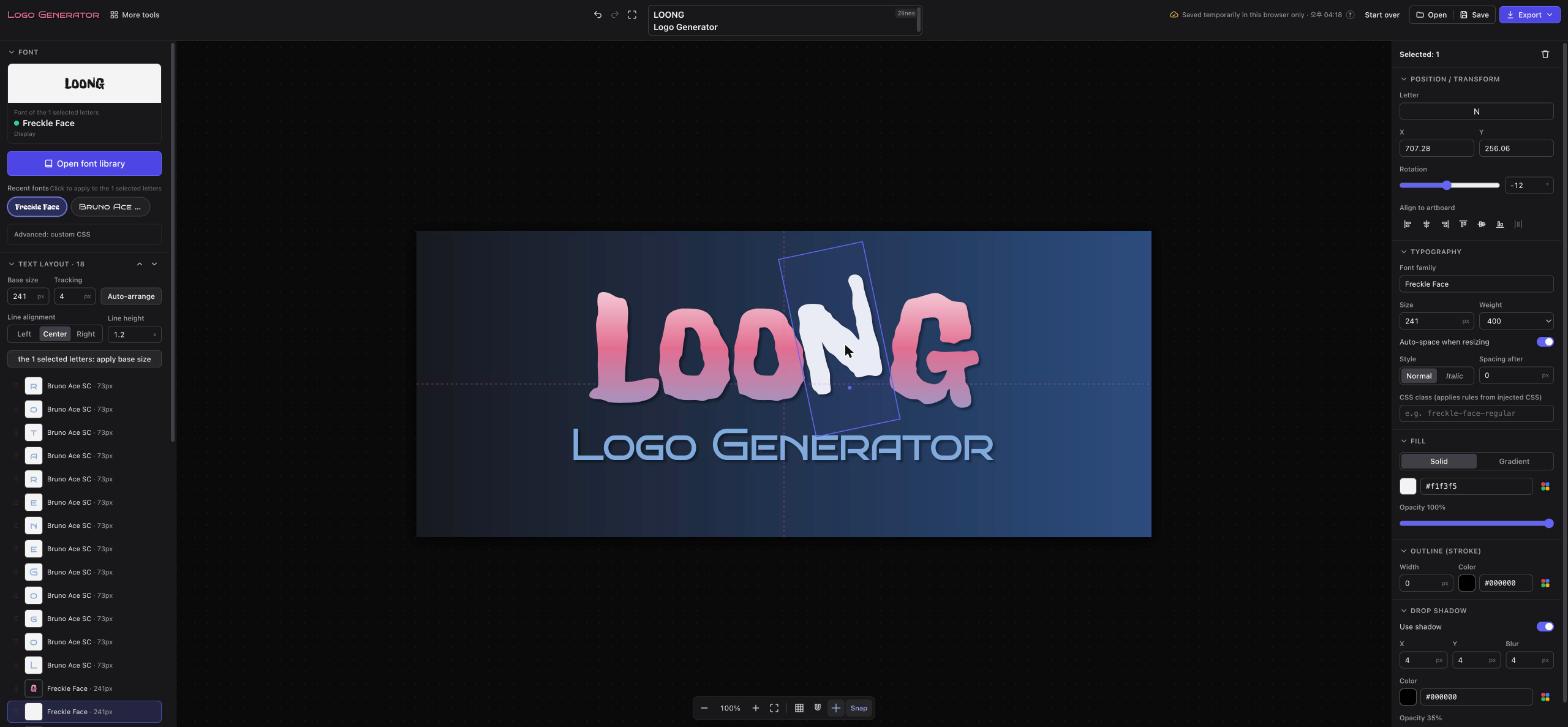 Guide
Move, Rotate and Space Every Letter: Precise Wordmark Editing
Learn how to select, drag, rotate and space individual letters in Logo Generator to give a text logo a custom, hand-tuned look.
November 7, 2026 · 3 min read