Logo Backgrounds: When to Use Transparent, Solid or Gradient
Key takeaways
- Your master logo should work on a transparent background.
- Solid and gradient backgrounds are for banners, social images and app icons.
- Size presets cover landscape logos, squares, social covers and 1200×630 OG images.
The background decides where your logo can live. A logo designed on a bright pink square might look great in the editor and terrible on your white website header. This guide covers backgrounds and artboard sizes in Logo Generator.
The rule: design for transparency first
Your master logo—the one you'll use on websites, documents and partner pages—should work without a background. That means letters with enough contrast on both light and dark surfaces, or two versions (dark and light).
Use a background only when the logo is the whole image: social banners, profile pictures, app icons and link previews.
Background options
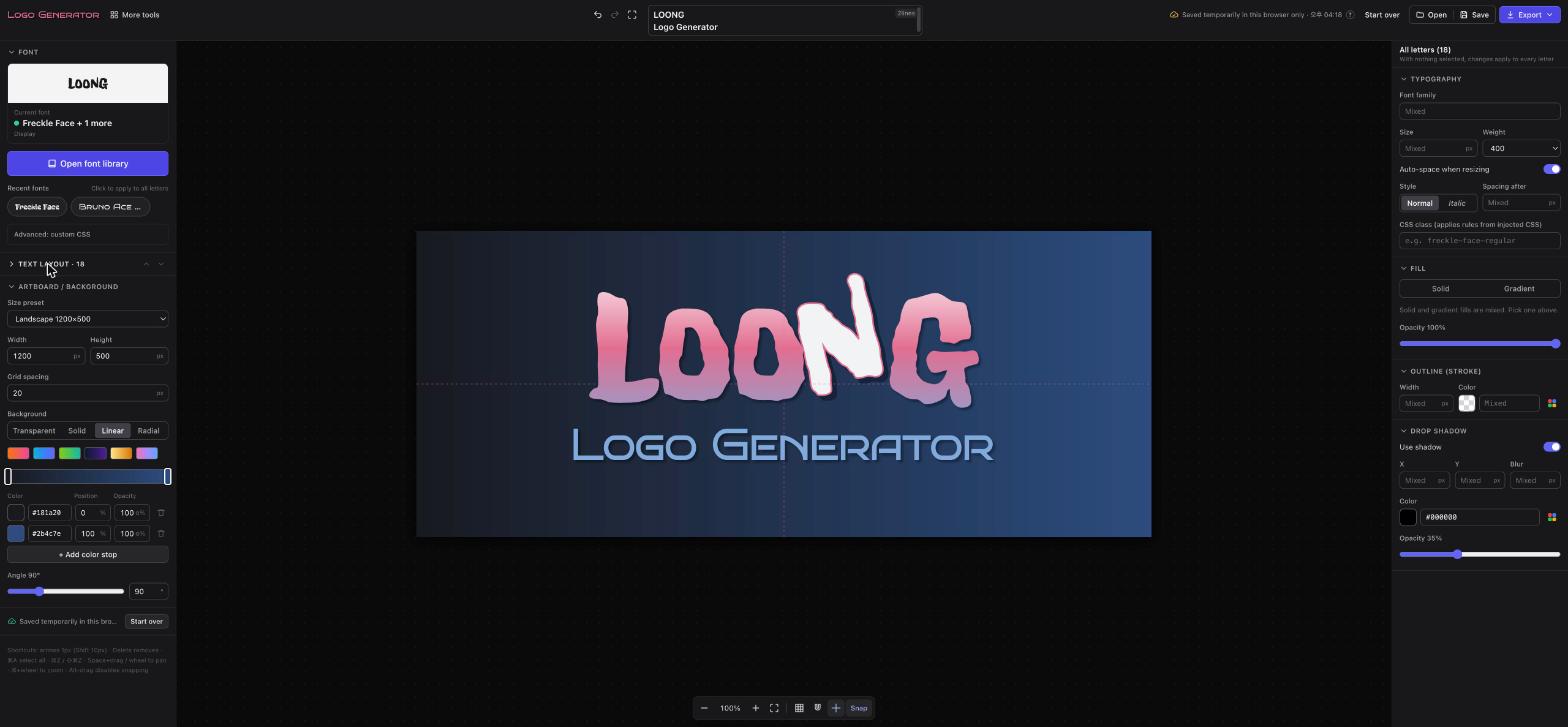
Open Artboard / Background in the left panel:
- Transparent: no background. The canvas shows a checkerboard to mark transparency.
- Solid: a single colour.
- Linear: a gradient in one direction, with presets, colour stops and angle.
- Radial: a gradient from a centre point.
A charcoal-to-navy linear background (#181a20 → #2b4c7e) makes the light letters stand out.
Gradient backgrounds use the same editor as gradient letters—see the gradient guide.
Artboard size presets
| Preset | Size | Best for |
|---|---|---|
| Landscape | 1200×500 | Website headers, documents |
| Wide | 1600×600 | Wide banners |
| Square | 1024×1024 | Profile pictures, app icons |
| Social cover | 1500×500 | X (Twitter) header and similar covers |
| OG image | 1200×630 | Link previews on social and messaging apps |
| Custom | any | Your own size |
You can also set Width and Height directly and change Grid spacing for snapping.
Exporting with or without background
You don't have to choose once:
- The PNG dialog has Include background or Transparent, plus Whole artboard or Letters only (auto padding).
- The Icon package has a toggle to keep the background on favicon / app icons.
- SVG includes the background when one is set.
A practical workflow: design with a background to judge colours, then export a transparent "letters only" PNG for general use and a full-artboard PNG for social.
Contrast check
Before exporting, switch the background between light and dark colours and see if the logo still reads. If one side fails, make a second colour version of the logo rather than adding heavy outlines.
Read next: which file format should your logo be?
FAQ
How do I get a logo with a transparent background?
Choose Transparent under Background, or keep any background and pick Transparent in the PNG dialog. SVG exports without a background when the artboard is transparent.
What size is an Open Graph (link preview) image?
1200×630 pixels. Choose the "OG image 1200×630" preset, design on it, and export a PNG.
What do the checkerboard squares mean?
They mark transparent areas on the canvas. They are not exported.
Keep reading
 Guide
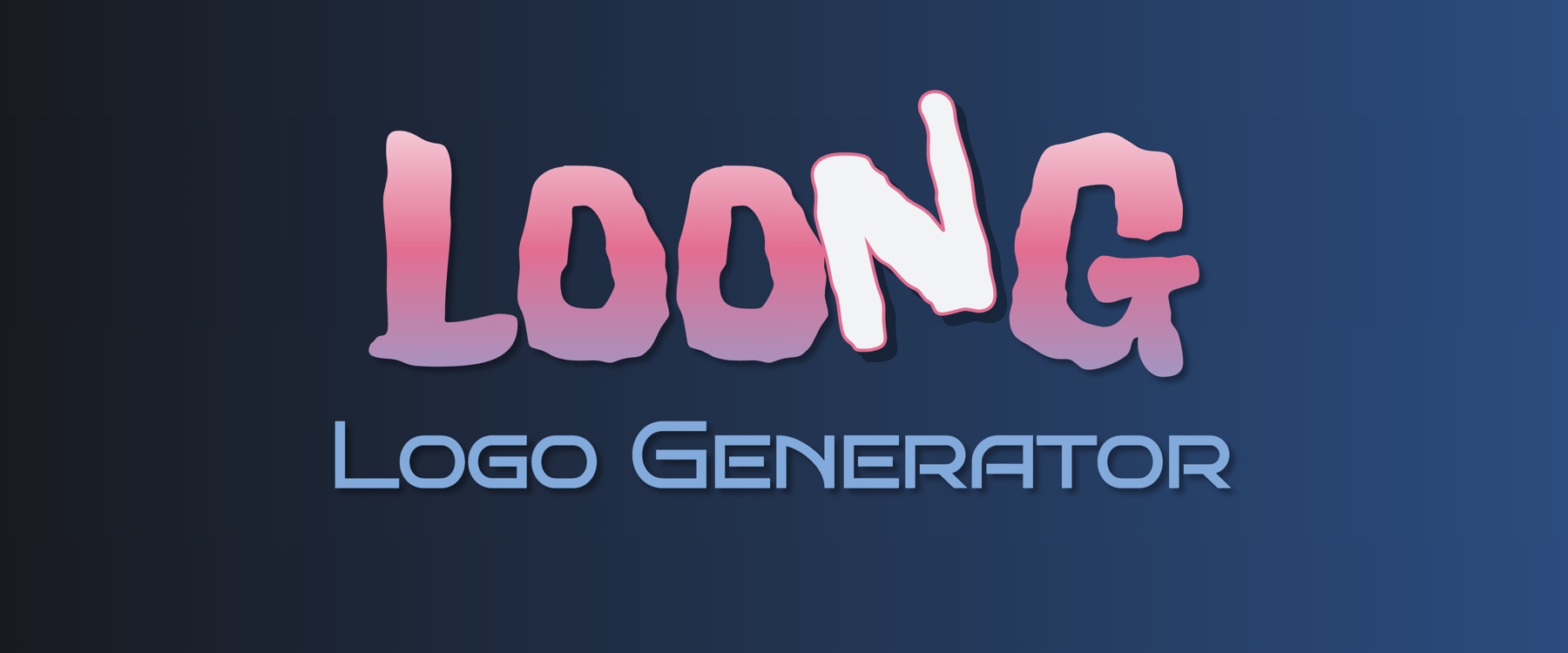
How to Make a Text Logo in 5 Minutes (Free, No Sign-Up)
A step-by-step guide to making a text logo or wordmark in your browser with Logo Generator: type your name, pick a font, adjust letters, and export SVG or PNG.
November 8, 2026 · 3 min read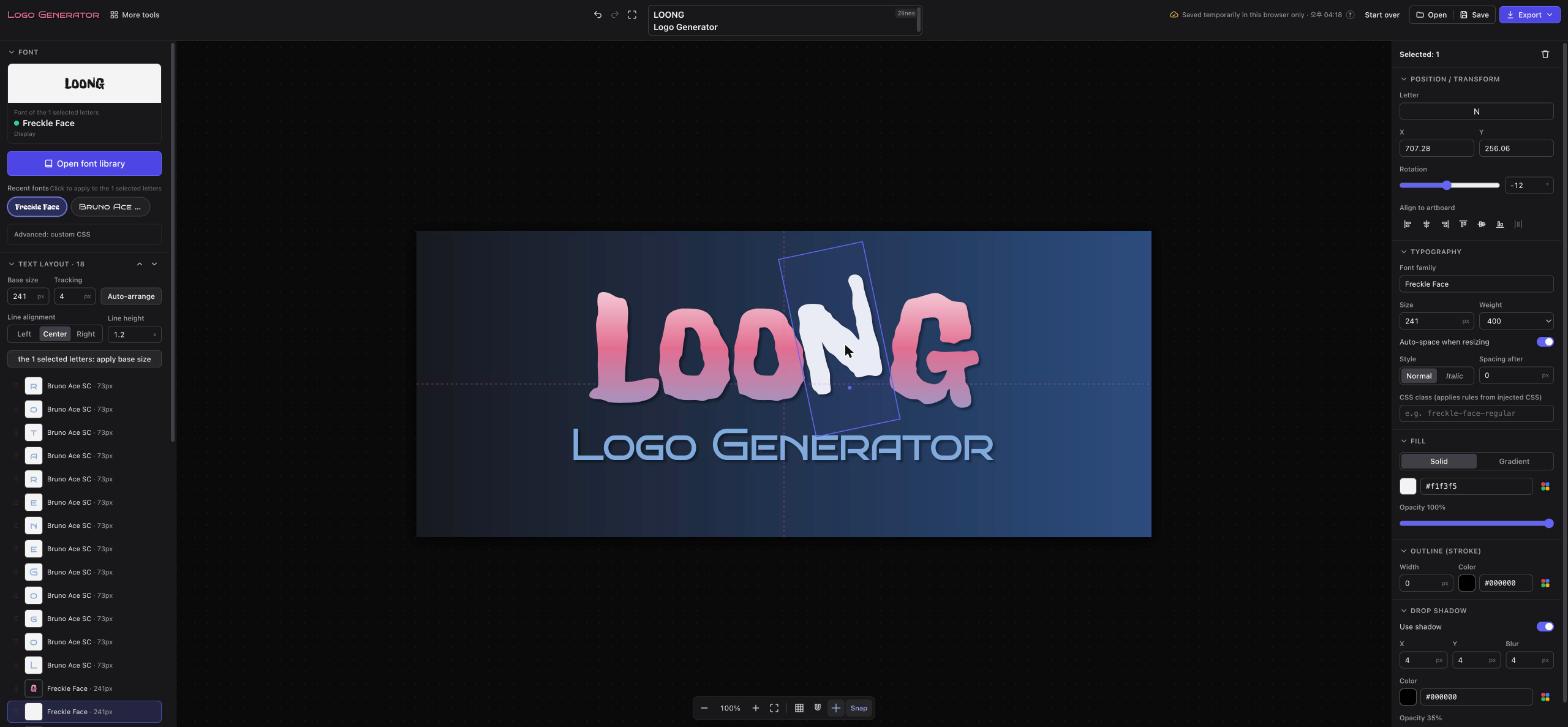 Guide
Move, Rotate and Space Every Letter: Precise Wordmark Editing
Learn how to select, drag, rotate and space individual letters in Logo Generator to give a text logo a custom, hand-tuned look.
November 7, 2026 · 3 min read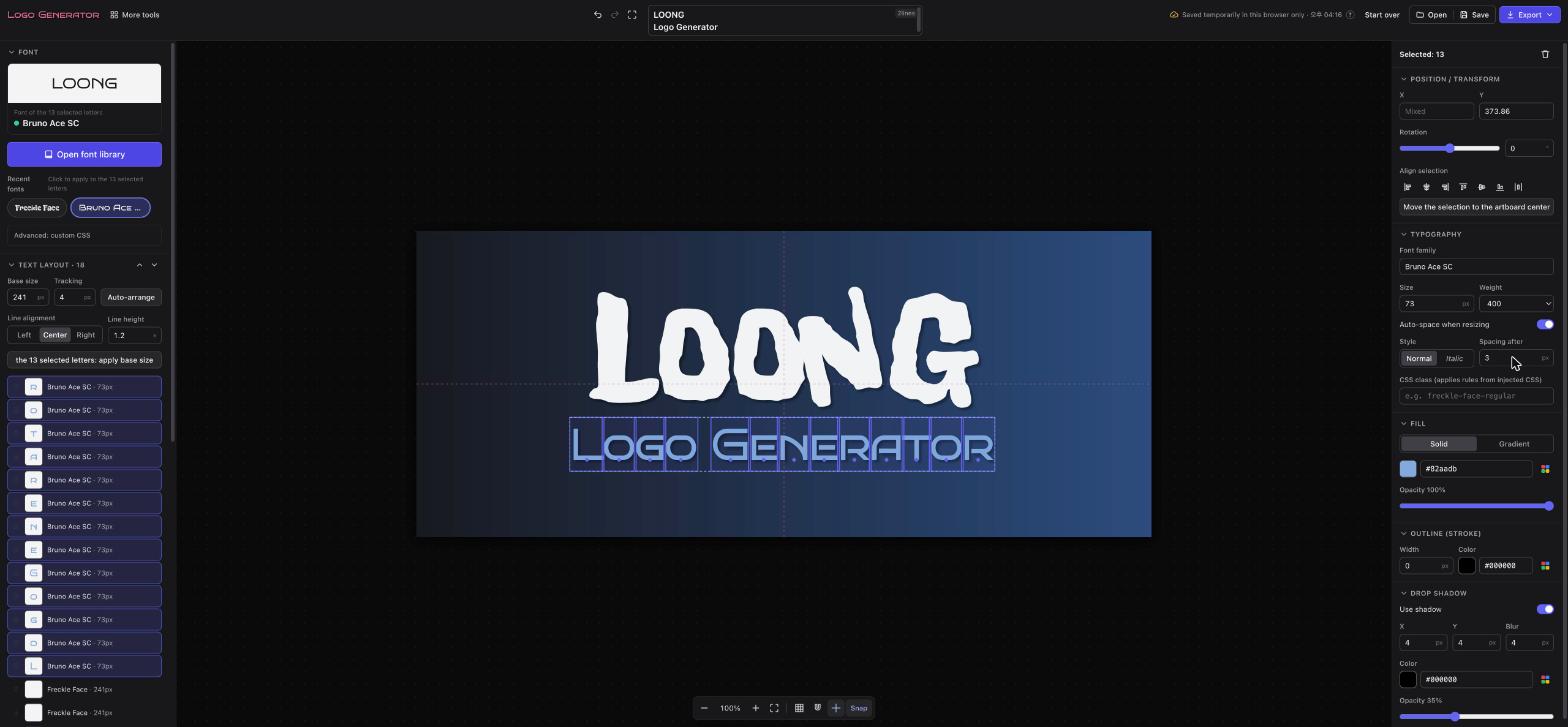 Guide
Two-Line Logos: Pair a Wordmark with a Tagline Using Line Height and Alignment
How to build a stacked logo with a large name and a smaller tagline in Logo Generator: multiple lines, size contrast, font pairing, line height and alignment.
November 4, 2026 · 2 min read