Remix Your Logo with AI Using HTML Code: Colour Variations, Banners and Social Images
Key takeaways
- Logo code (SVG or HTML/CSS) is something AI assistants can edit precisely.
- Ask for variations - colourways, dark mode, monochrome, banners, simple animations.
- Bring the best idea back into Logo Generator to fine-tune and export properly.
Once your logo exists as code, it becomes surprisingly easy to remix. An AI assistant can't reliably edit a PNG pixel by pixel, but it can rewrite a line of SVG or CSS exactly. That opens up a fast way to explore colour variations, banners and even small animations—while your original stays safe.
Get the code
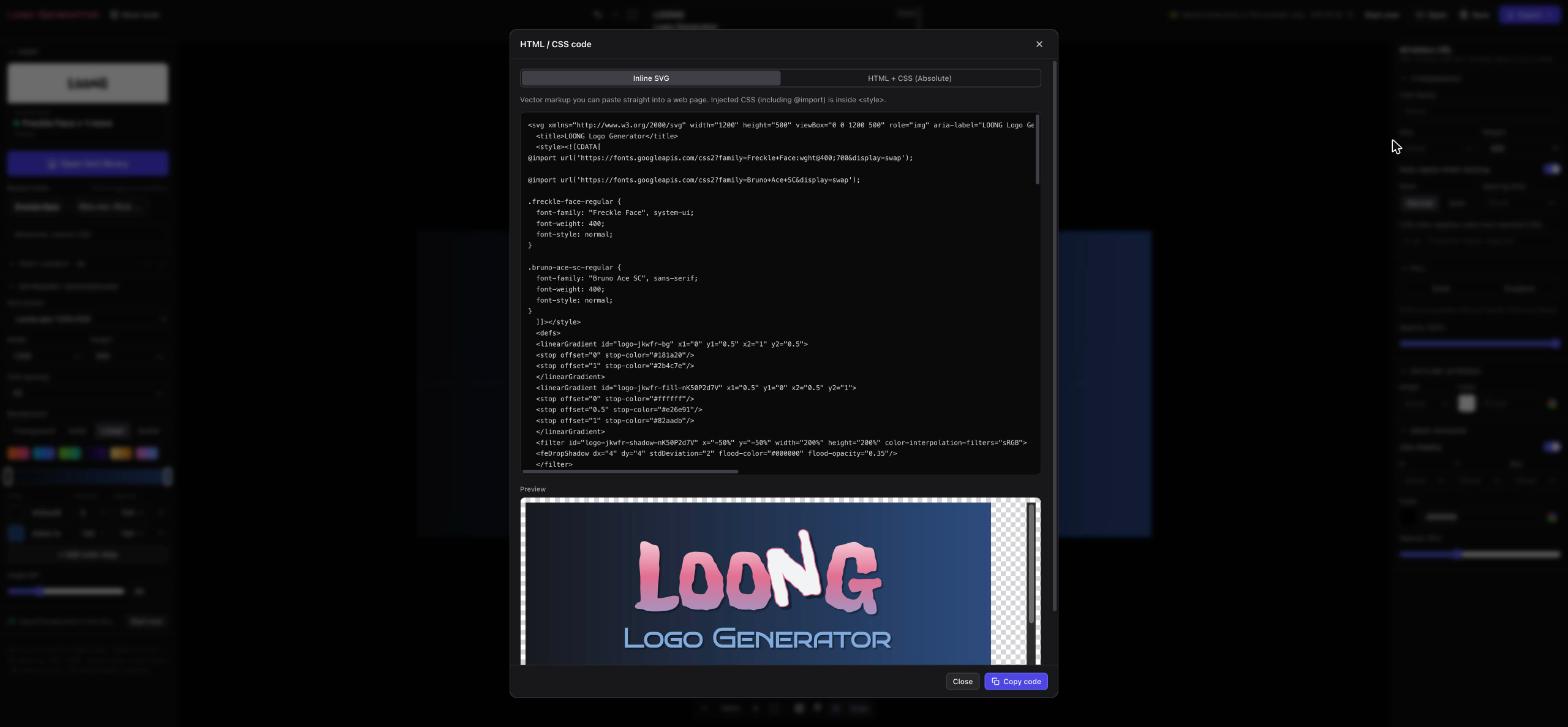
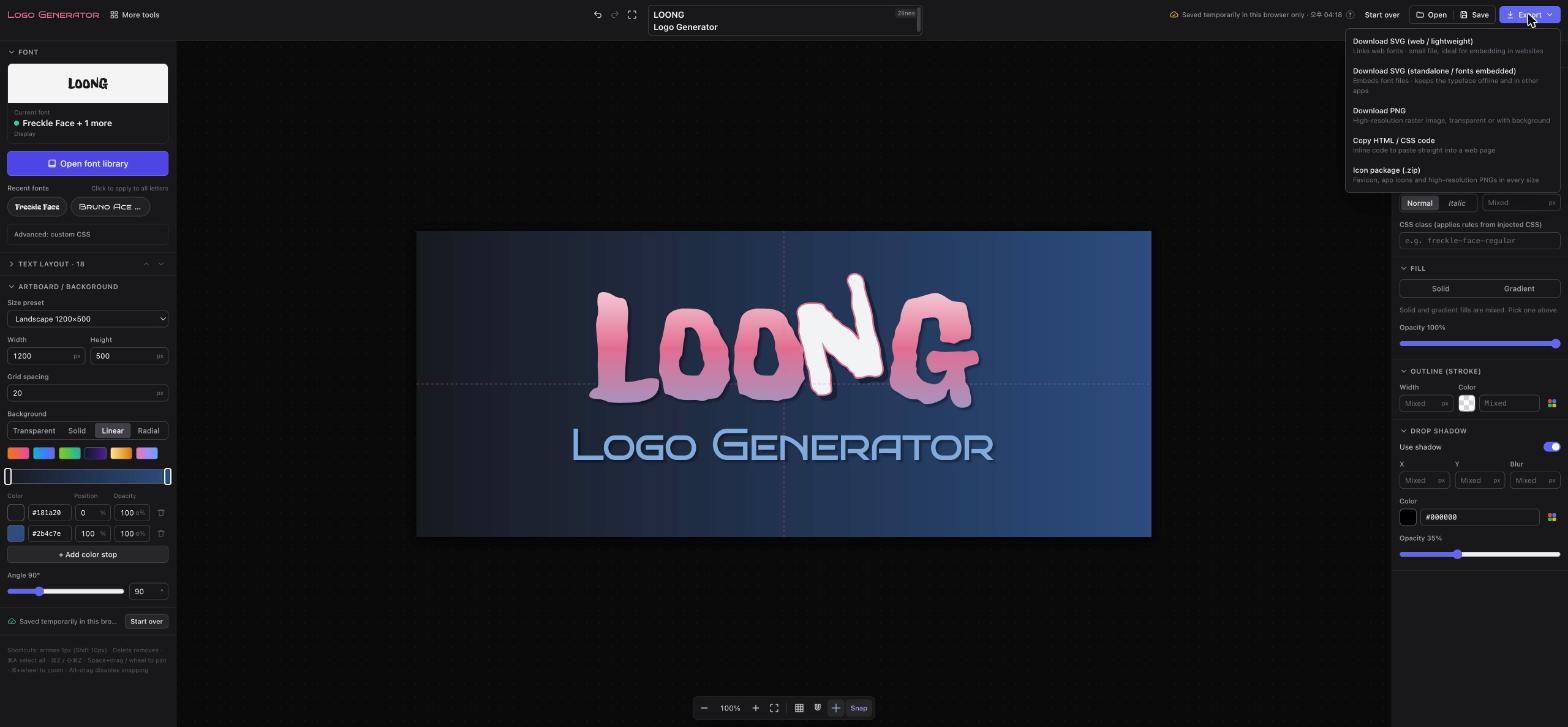
In Logo Generator, open Export → Copy HTML / CSS code:
- Inline SVG: best for visual edits—colours, gradients, background, artboard size.
- HTML + CSS (Absolute): each letter is its own element, which makes per-letter effects and CSS animation easy.
Choose the tab that fits your goal, then click Copy code.
Idea 1: Colour variations
Here is my logo as SVG. Create 4 colour variations as separate SVGs:
1) monochrome black, 2) monochrome white for dark backgrounds,
3) a warm palette, 4) a pastel palette. Keep fonts, letter positions
and sizes exactly the same. Show them side by side in one HTML page.
[paste SVG]
Pick a favourite, then recreate the colours in Logo Generator (or paste the hex codes into the Fill fields) and export properly.
Idea 2: Dark-mode logo
Make a dark-mode version of this SVG logo. Background #0f172a,
keep the gradient but lighten it so it passes WCAG contrast.
Output only the SVG.
Idea 3: Social banners and post images
Using this logo, build an HTML layout at 1500×500 for an X (Twitter) header:
logo on the left, the tagline "Free logos, right in your browser" on the right,
brand colours from the SVG. Then make a 1080×1080 Instagram post version.
Render the result in your AI tool or browser and export an image. For exact sizes, you can also set the artboard to Social cover 1500×500 or OG image 1200×630 in Logo Generator and design there—see logo backgrounds and sizes.
Idea 4: A subtle animated header
With the HTML + CSS version:
Animate this logo for a website header: letters fade in one by one
(60ms stagger), then the last letter tilts 10 degrees. CSS only,
respect prefers-reduced-motion.
Because every letter is its own element, the AI can target them individually.
Idea 5: Explore layouts before committing
Show 3 alternative layouts of this wordmark: stacked, horizontal with the
tagline on the right, and a compact monogram using the first letter.
Keep the fonts.
Use the AI's sketches as direction, then build the chosen layout in Logo Generator, where you can move individual letters precisely.
Keep a clean workflow
- Your master stays in Logo Generator. Save the project file before experimenting.
- Use AI to explore, not to finalise. AI output can contain small errors—shifted letters, swapped fonts.
- Bring winners back. Recreate the chosen variation in the editor, then export SVG, PNG and the icon package.
- Name files clearly:
logo-dark.svg,logo-mono-white.png,banner-x-1500x500.png.
This is the last article in the logo files series. Start from the beginning with which logo file format to use, or try text-only logo styles.
FAQ
Is it better to give the AI inline SVG or the HTML + CSS version?
Inline SVG for visual edits (colours, gradients, layout of the artboard). HTML + CSS when you want web effects like hover states or CSS animation, because each letter is a separate element.
Can an AI turn the code into an image file?
Many assistants can render HTML or SVG and give you a preview or a PNG. If yours can't, open the code in a browser and take a high-resolution screenshot, or rebuild the variation in Logo Generator and export a PNG.
Will this change my original logo?
No. You're editing a copy of the code. Your project file in Logo Generator stays untouched.
Keep reading
 Insight
What File Format Should Your Logo Be? SVG, PNG, ICO, HTML and More
Which logo file to use where: SVG for websites and print, PNG for documents and social, ICO and PNG sizes for favicons, HTML for web embeds, and a project file for edits.
October 31, 2026 · 2 min readInsight
SVG vs PNG for Logos: Why Vector Wins (and When PNG Is Still Right)
Compare SVG and PNG for logos: sharpness at any size, file size, editability, transparency, browser and app support, and the cases where PNG is the better choice.
October 29, 2026 · 2 min readInsight
Give Your SVG Logo to an AI and Get a Website: Prompts That Work
How to use your SVG logo with AI assistants like ChatGPT, Claude or Gemini to generate a landing page that matches your brand, with copy-paste prompt templates.
October 28, 2026 · 3 min read