Give Your SVG Logo to an AI and Get a Website: Prompts That Work
Key takeaways
- SVG is text, so an AI can read your logo's exact colours, fonts and shapes.
- Paste the inline SVG code and ask for a page that reuses those brand details.
- Iterate in small steps - layout first, then copy, then details.
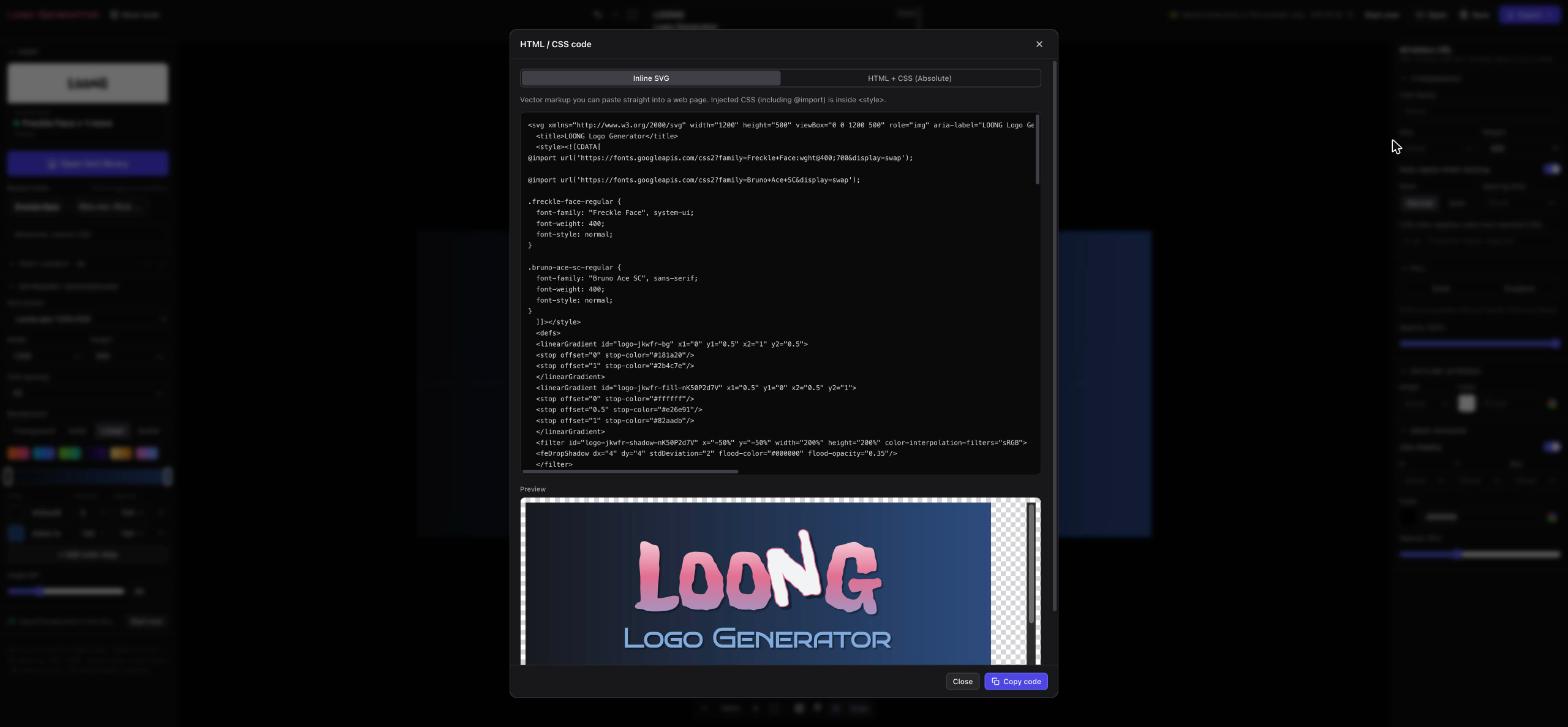
Here's a trick that saves hours: instead of describing your brand to an AI, give it your logo as SVG. Because SVG is plain text, an AI assistant can read the exact colours (#e26e91, #82aadb, #2b4c7e), the font names (Freckle Face, Bruno Ace SC) and the layout—then build a landing page that actually matches your logo.
This works with ChatGPT, Claude, Gemini and most coding assistants.
Why SVG beats a PNG here
When you upload a PNG, the AI has to guess colours and fonts from pixels. With SVG, nothing is guessed:
- Colours are written as hex codes.
- Fonts appear in the
@importandfont-familylines. - Gradients are listed stop by stop.
- The logo itself can be embedded unchanged in the page.
More background in SVG vs PNG for logos.
Step 1: Get the SVG code
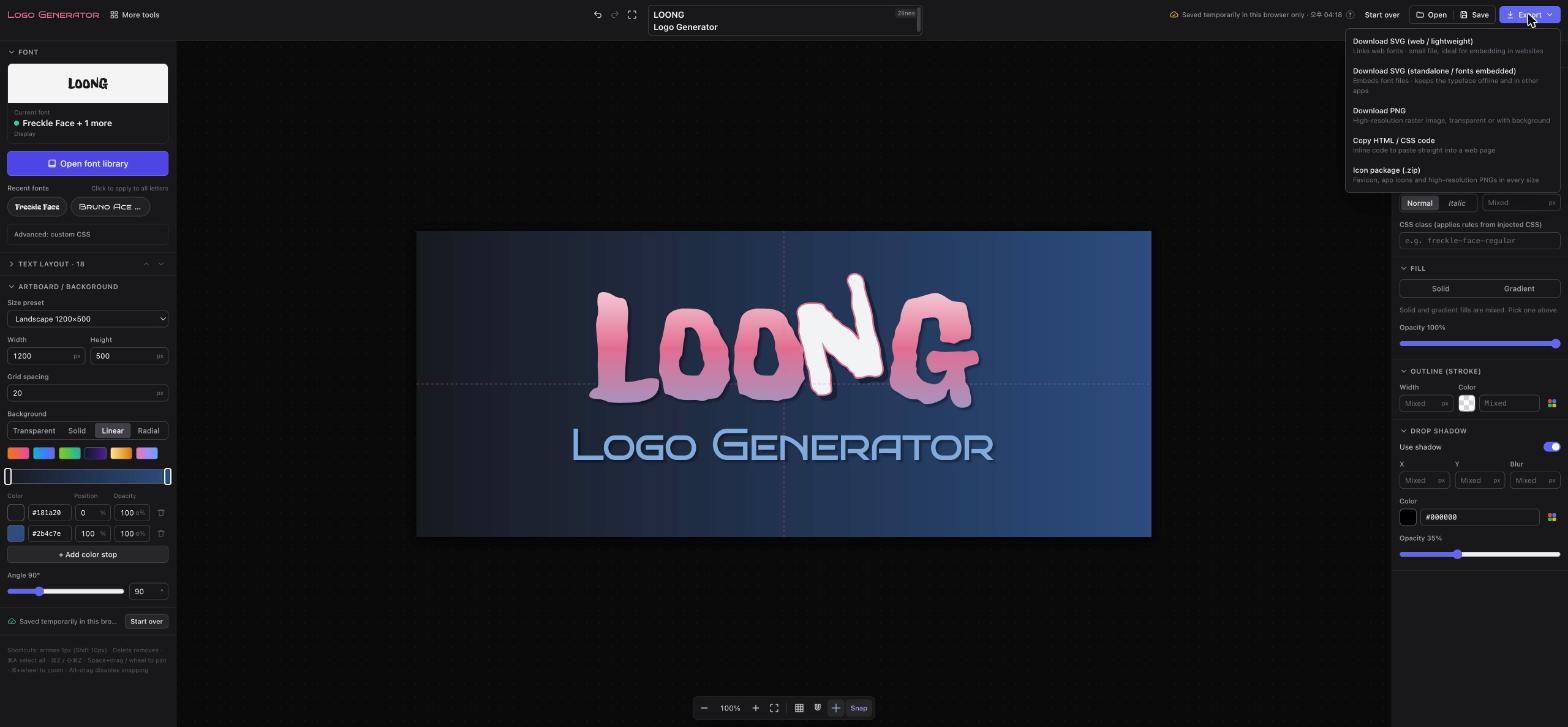
In Logo Generator, click Export → Copy HTML / CSS code, stay on the Inline SVG tab and click Copy code.
The inline SVG includes the font imports and gradients—exactly what an AI needs.
Prefer files? Download SVG (web / lightweight) and attach it instead.
Step 2: Start with a clear prompt
Paste this, replacing the bracketed parts and adding your SVG at the end:
You are a web designer. Build a single-page landing site as one HTML file
with embedded CSS (no frameworks).

Brand: [LOONG Logo Generator] — [a free logo maker that runs in the browser]
Audience: [founders, creators and small businesses who need a logo fast]
Sections: hero, 3 key features, how it works, FAQ, footer

Use my logo below exactly as provided (embed the SVG unchanged in the header).
Read the colours and fonts from the SVG and use them as the site's palette
and typography. Make it responsive and accessible (good contrast, alt text).

[paste inline SVG here]
Step 3: Refine in small steps
Big "make it better" requests produce random changes. Ask for one thing at a time:
Keep everything else. Make the hero full-height with the logo centred,
a one-line tagline under it, and one primary button "Make a logo".
Create a light and a dark theme using the logo's gradient colours.
Add a toggle in the header.
Write the copy in a warm, concise tone. Keep each section under 60 words.
Step 4: Make the logo work across the site
Ask the AI to reuse your logo assets consistently:
Add a favicon using the same logo. Use a simplified version (just "L")
for the mobile header. Don't change the colours or the font.
For production favicons, use the Icon package from Logo Generator rather than an AI-drawn icon—see the favicon guide.
Step 5: Publish
The result is one HTML file. You can:
- open it locally to check,
- paste it into an HTML block in a website builder,
- or upload it to a static host such as Cloudflare Pages, Netlify or GitHub Pages.
Tips and pitfalls
- Say "unchanged". Otherwise the AI may redraw your logo.
- Keep the font names. If the AI swaps fonts, remind it to use the
@importfrom the SVG. - Check contrast. Brand colours that look good in a logo can be hard to read as body text; ask for accessible text colours.
- Save your project file. If you later change the logo, export a new SVG and ask the AI to swap it in.
Next in the series: edit and remix your logo with AI using the HTML code.
FAQ
Should I upload the SVG file or paste the code?
Either works with most assistants. Pasting the inline SVG code is the most reliable, because the AI sees the exact markup, colours and font names.
Will the AI keep my logo exactly as it is?
Ask it explicitly to embed the SVG unchanged. Otherwise it may redraw or "improve" it. The prompts below include that instruction.
Do I need to know how to code?
No. Most assistants can show a live preview, and you can paste the resulting HTML into a no-code builder's HTML block or a static host.
Keep reading
 Insight
What File Format Should Your Logo Be? SVG, PNG, ICO, HTML and More
Which logo file to use where: SVG for websites and print, PNG for documents and social, ICO and PNG sizes for favicons, HTML for web embeds, and a project file for edits.
October 31, 2026 · 2 min readInsight
SVG vs PNG for Logos: Why Vector Wins (and When PNG Is Still Right)
Compare SVG and PNG for logos: sharpness at any size, file size, editability, transparency, browser and app support, and the cases where PNG is the better choice.
October 29, 2026 · 2 min readInsight
Remix Your Logo with AI Using HTML Code: Colour Variations, Banners and Social Images
Export your logo as inline SVG or HTML/CSS and ask an AI to create colour variations, dark-mode versions, banners, social posts and animated headers—without losing the original.
October 27, 2026 · 2 min read