Make a Complete Favicon Set from Your Logo and Add It to Your Website
Key takeaways
- Browsers and phones need several icon files - ICO, 16/32/48 PNGs, 180px Apple, 192/512px Android.
- Logo Generator's Icon package creates all of them plus site.webmanifest and an HTML snippet.
- Simplify the design for tiny sizes - one or two letters, bold, high contrast.
A favicon is the tiny icon in browser tabs, bookmarks and search results. It's small, but it's how people find your tab among twenty others—and Google shows it next to your site in mobile search. This guide shows how to generate a complete set from your logo and install it.
Which files do you actually need?
| File | Size | Used by |
|---|---|---|
| favicon.ico | 16, 32, 48 | All browsers, legacy fallback |
| favicon-16x16.png / 32x32 / 48x48 | 16–48px | Modern browsers |
| apple-touch-icon.png | 180×180 | iPhone/iPad home screen |
| android-chrome-192x192.png / 512x512 | 192, 512px | Android home screen, PWA |
| site.webmanifest | — | App name and icons for Android/PWA |
Step 1: Design a small-size version
Your full wordmark rarely works at 16px. Before exporting, consider a simplified version in Logo Generator:
- Type just the first letter, or two letters as a monogram.
- Use a bold font and a solid, high-contrast colour.
- Choose the Square 1024×1024 artboard preset.
- Keep a background colour so the icon is visible on both light and dark tabs.
Save this as a separate project so you can update it later.
Step 2: Export the icon package
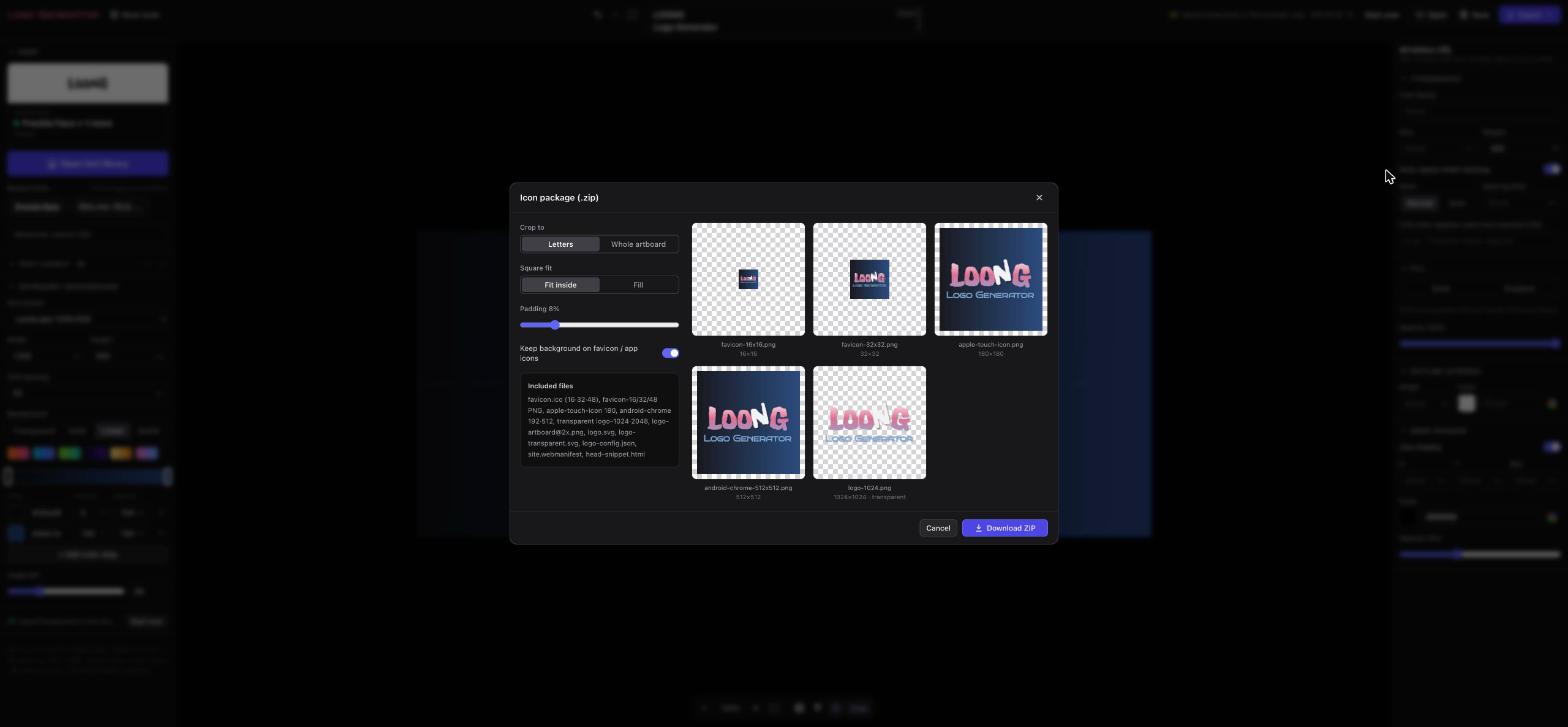
Click Export → Icon package (.zip).
Check the 16px preview—if it's unreadable there, simplify the design.
Adjust:
- Crop to: Letters (tight) or Whole artboard.
- Square fit: Fit inside keeps the whole logo visible; Fill crops it to fill the square.
- Padding: a little padding (5–10%) stops letters touching the edges.
- Keep background on favicon / app icons: usually on.
Click Download ZIP.
Step 3: Upload the files
Unzip and upload the icon files to the root of your site, next to your homepage. On most hosts that's the top-level folder; on static hosts like Cloudflare Pages or Netlify, put them in the folder that's published (often public/ or dist/).
Step 4: Add the HTML snippet
Open head-snippet.html from the zip and paste its contents inside the <head> of every page (or your site template):
<link rel="icon" href="/favicon.ico" sizes="any">
<link rel="icon" type="image/png" sizes="32x32" href="/favicon-32x32.png">
<link rel="icon" type="image/png" sizes="16x16" href="/favicon-16x16.png">
<link rel="apple-touch-icon" sizes="180x180" href="/apple-touch-icon.png">
<link rel="manifest" href="/site.webmanifest">
Website builders (WordPress, Wix, Squarespace and others) usually have a "Site icon" or "Favicon" setting—upload the 512px PNG there instead.
Step 5: Check it
- Open your site in a new private window.
- Bookmark it and add it to a phone home screen.
- Search for your site name on mobile Google after a few days to see the favicon in results.
Bonus: the other files in the zip
The package also includes transparent logo-1024.png and logo-2048.png, logo-artboard@2x.png, two SVGs and logo-config.json—a ready-made logo kit. See the full export guide for details.
FAQ
Where do I put the favicon files?
Upload them to the root of your website (the same folder as your homepage), then paste the contents of head-snippet.html inside the <head> of your pages.
Why isn't my new favicon showing?
Browsers cache favicons aggressively. Hard-refresh the page, open it in a private window, or wait a while. Make sure the paths in the snippet match where you uploaded the files.
Should the favicon use my full logo?
Usually not. At 16px a full wordmark becomes a blur. Use the first letter or a short monogram, and keep the background on so it's visible in dark and light browser tabs.
Keep reading
 Guide
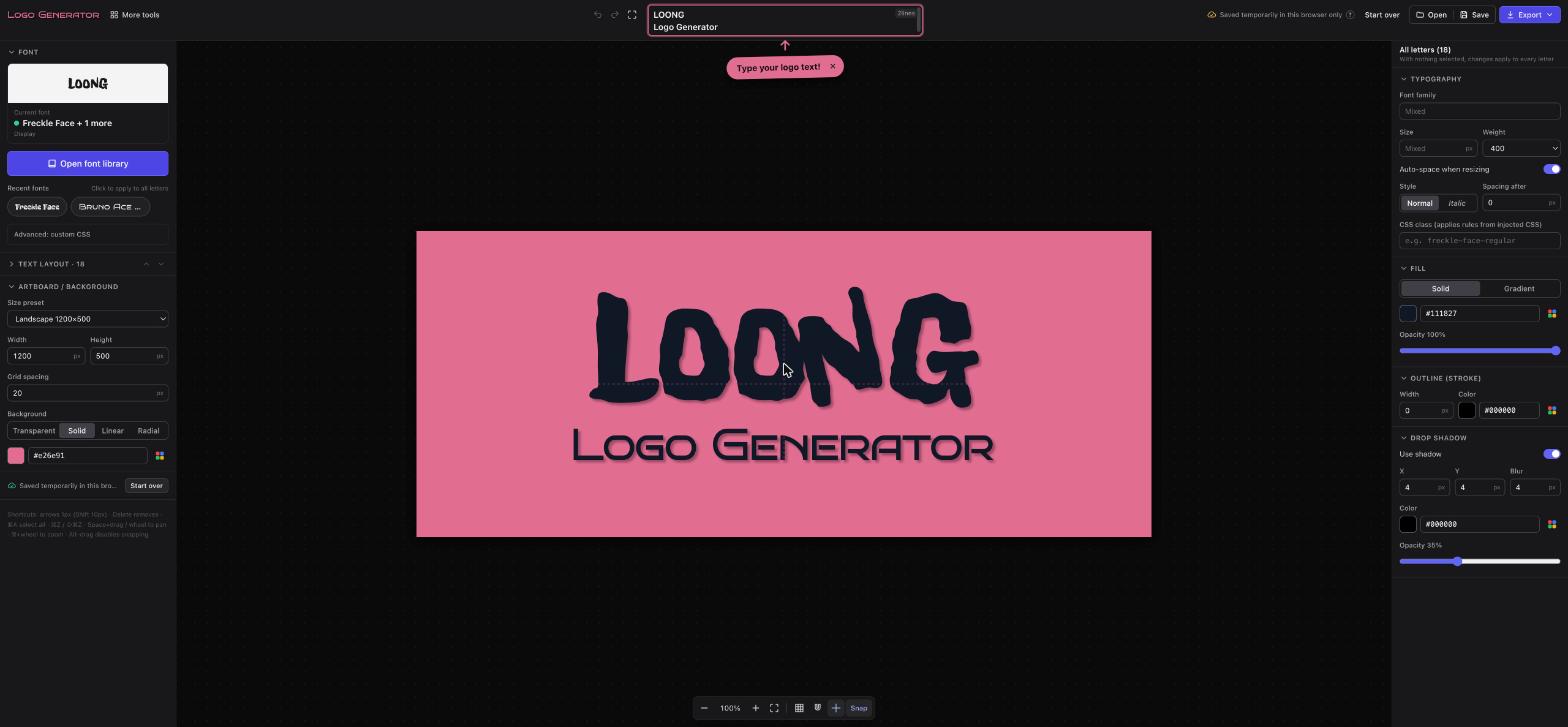
Make a Logo Without Photoshop: Combine Text Freely, Free and Online
You don't need to install or subscribe to Photoshop to make a logo. Combine text freely in your browser: move, rotate and recolor each letter, make a transparent background version, and export SVG and PNG.
November 10, 2026 · 4 min read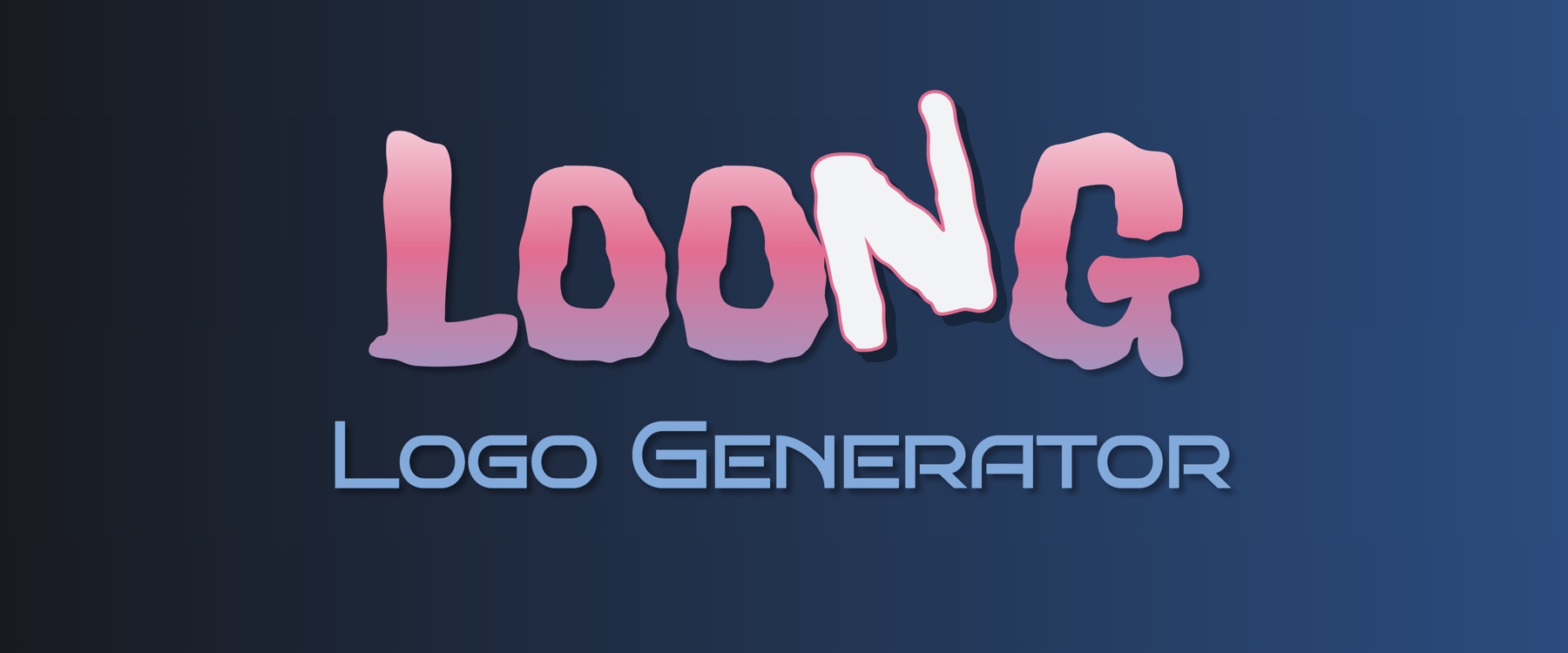 Guide
How to Make a Text Logo in 5 Minutes (Free, No Sign-Up)
A step-by-step guide to making a text logo or wordmark in your browser with Logo Generator: type your name, pick a font, adjust letters, and export SVG or PNG.
November 8, 2026 · 3 min read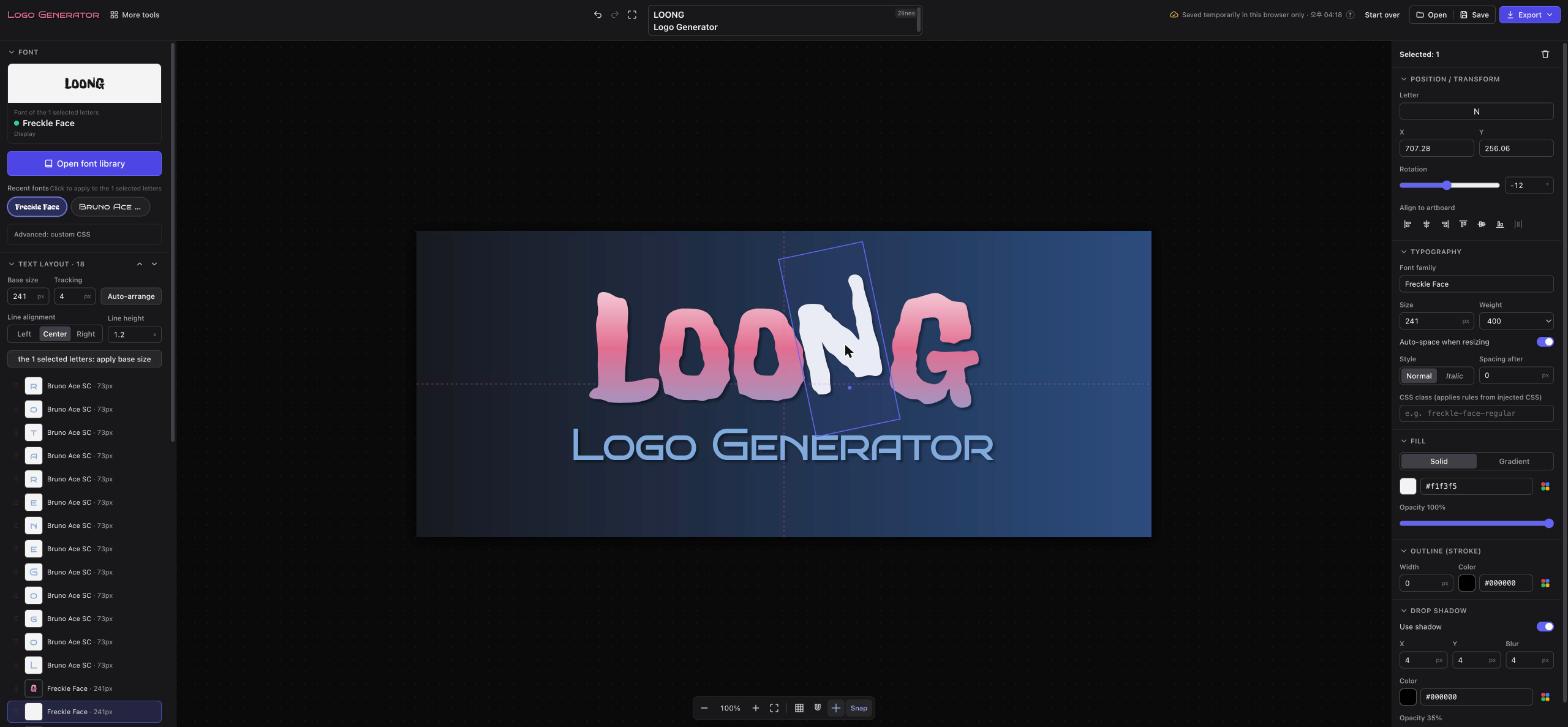 Guide
Move, Rotate and Space Every Letter: Precise Wordmark Editing
Learn how to select, drag, rotate and space individual letters in Logo Generator to give a text logo a custom, hand-tuned look.
November 7, 2026 · 3 min read